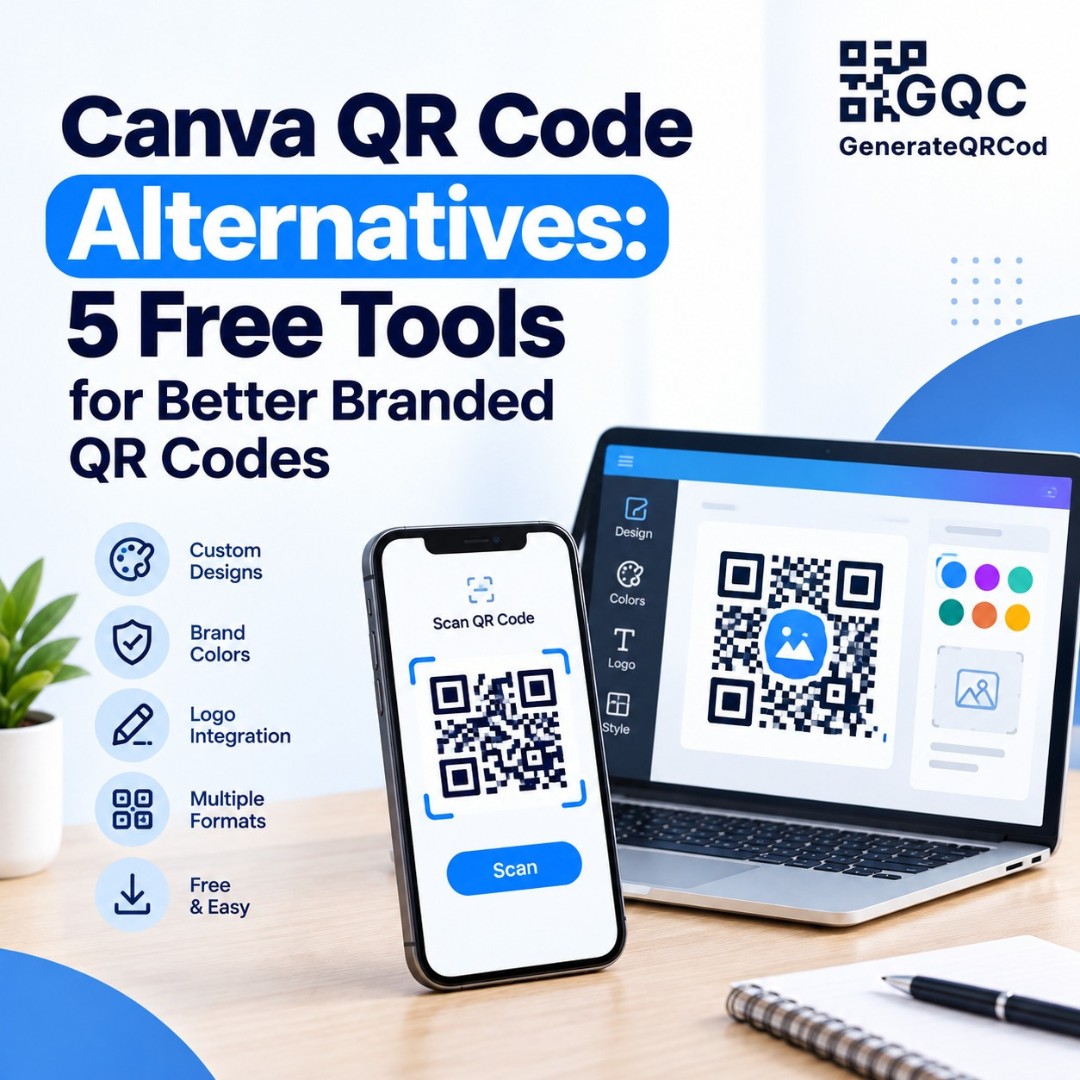
You finish a beautiful event poster in Canva. Fonts look right, colors match the brand, the layout is clean. Then you add the QR code, and it sits there like a plain black square that doesn't belong in the design.
That's usually the moment people start looking for Canva QR code alternatives.
Canva is great for design. But its QR code tool is basic, and if you want your logo in the code, brand colors, or a print-ready file, you may need a dedicated QR code generator. This guide explains what Canva's tool does, where it falls short, and five alternatives worth trying.
Can You Make a QR Code in Canva?
Yes. Canva has a built-in QR code app. You open a design, go to Apps, search for "QR code," paste a link, and Canva adds a QR code to your page. It's quick and free, and for a simple link on a flyer, it does the job.

Why Look for a Canva QR Code Alternative?
Canva's QR tool is made for convenience, not control. It creates static QR codes for links, and the design options are limited to basics like colors. There is no simple built-in way to put your logo in the center of the code, no scan tracking, and fewer QR types than a dedicated generator. You can't easily make a WiFi, vCard, or SMS QR code the same way.
Some people also run into scanning trouble. Usually it isn't Canva's fault. It's the design choices around the code, like a light-colored code on a busy background, or a code shrunk too small to fit a corner.
So the smarter workflow is often this: make the QR code in a proper generator, download it, and upload it into your Canva design.
Canva QR Code Alternatives at a Glance
Tool | Free to use | Logo in QR code | Best for |
GenerateQRCod | Yes, no sign-up | Yes, free | Branded static QR codes with PNG and SVG download |
QRCode Monkey | Yes | Yes | Designer-style static codes |
QRCodeChimp | Free plan | Yes | Creative shapes and digital business cards |
Adobe Express | Free plan | Limited | People already using Adobe tools |
The QR Code Generator (TQRCG) | Free plan | Yes | A few trackable dynamic codes |
1. GenerateQRCod
Yes, it's our own tool. We'll keep this fair.
GenerateQRCod is a free QR code generator that needs no account and adds no watermark. It supports URL, text, vCard, email, phone, SMS, and WiFi codes. You can upload your logo, pick exact brand colors with hex codes, and see a live preview as you edit.
The part that matters most for Canva users is the download. You get PNG for screens and SVG for print. The SVG file stays sharp at any size, so the code looks crisp on a business card and on a large banner alike. Right now it creates static codes, with dynamic codes listed as coming soon.
Best for designers, small businesses, and event teams who want a branded code that fits their Canva design.
2. QRCode Monkey
QRCode Monkey is a long-standing free static QR code generator with nice design control. You can change body shapes, eye shapes, and colors, and add a logo. It also offers high-quality files for print.
Best for people who want a stylish static code and don't need tracking.
3. QRCodeChimp
QRCodeChimp leans heavily into design. It offers custom shapes, stickers, and templates, and it's popular for digital business cards. There's a free plan, with extra features on paid tiers.
Best for creative brands that want a QR code that stands out rather than blends in. Just test it well, since heavy styling can hurt scanning.
4. Adobe Express
Adobe Express includes a free QR code generator too. It's simple and quick, with a few style and color options. If your team already works inside Adobe tools, it keeps things in one place.
Best for Adobe users who need a basic link QR code. Logo and QR type options are more limited than a dedicated generator.
5. The QR Code Generator (TQRCG)
TQRCG offers a free plan with a couple of dynamic QR codes, meaning you can change the link later and see scan counts. It also supports logos and colors.
Best for people who need one or two editable, trackable codes for a campaign.
How to Add a Custom QR Code to Your Canva Design
This takes about two minutes.
First, create your code on GenerateQRCod. Pick the type, add your link or details, upload your logo, and set your colors to match the Canva design. Download the SVG for print work or the PNG for social posts. In Canva, click Uploads, add the file, and drag it onto your page.
Before you print, scan it straight from your screen with two different phones. Then print one test copy and scan that too. Screens and paper don't always behave the same.
Design Tips So Your QR Code Still Scans
A pretty QR code that doesn't scan is just decoration. Keep the code dark and the background light, because reversed or low-contrast codes fail more often. Leave a clean white margin around the code instead of placing it on top of photos or patterns.
Size matters too. On print, keep it at least 2 cm wide, and much bigger on posters people scan from across a room. If you add a logo, keep it small and use a higher error correction level. There's more on this in our QR code best practices guide.
Final Thoughts
Canva is still one of the easiest ways to design. It just isn't the best place to make the QR code itself. Build the code in a dedicated generator, match it to your brand, and drop it into your design. Make your free branded QR code on GenerateQRCod, and your next poster won't have a plain black square spoiling it. Need ideas? See our list of QR code examples.