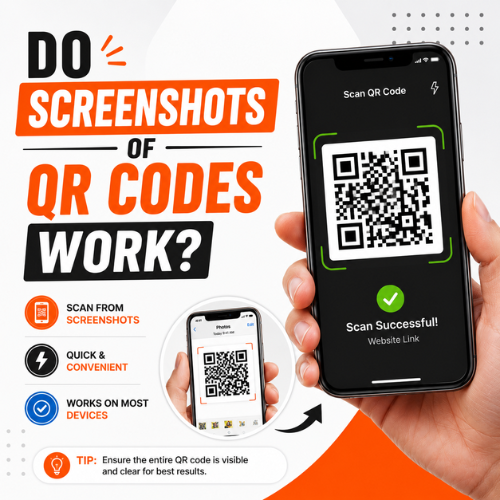
Yes — in most cases, a screenshot of a QR code works just as well as the original. A screenshot preserves the exact same visual pattern, so any scanner can read it. But four things can break a QR screenshot: (1) the image is blurry or too small, (2) you cropped off the white border, (3) the code expired, or (4) it needs account verification (like WhatsApp or event tickets). This guide explains all four — plus how to scan any QR screenshot on iPhone, Android, and PC.
Why People Screenshot QR Codes
You see a QR code on a website, social media post, or a friend's phone screen. You are not ready to scan it right now. So you take a screenshot. Makes total sense — it takes one second and the code is saved forever.
People screenshot QR codes all the time for these reasons:
• They received a QR code on WhatsApp or email and want to use it later.
• They saw a discount QR code on a website and want to use it in-store.
• They got a ticket QR code and want a backup.
• They want to share a QR code with someone else by forwarding the screenshot.
• They are on a computer and cannot scan a physical code with a camera.
In all these cases, one question matters: will the screenshot actually scan? Let us answer that clearly.
How QR Codes Store Data (Quick Explanation)
A QR code is just a visual pattern — a grid of black and white squares. Each square arrangement encodes a specific piece of data, like a URL, phone number, WiFi password, or plain text.
When you take a screenshot, you copy that exact visual pattern pixel by pixel. Your phone camera or scanner app does not care whether it is looking at the original QR code or a screenshot of it — it reads the same pattern either way.
That is why screenshots work. The data lives in the image itself — not in some server that checks if it is the 'original' file.
When Does a QR Code Screenshot Work — and When Does It Fail?
This is the most important part. Here is a clear breakdown:
Scenario | Works? | Why |
Website link / URL QR code | ✅ YES | Static code — same data every time |
Restaurant menu QR code | ✅ YES | Static, just a link |
WiFi password QR code | ✅ YES | Fixed data in the code |
Contact / vCard QR code | ✅ YES | Static — saves to phone contacts |
Discount / promo QR code | ✅ YES | Static link, works fine |
Google Pay / UPI payment QR | ✅ YES | Payment info is embedded |
Event ticket QR code | ⚠️ MAYBE | Depends on platform security settings |
WhatsApp Web login QR | ❌ NO | Rotates every 20 seconds |
Aadhaar one-time-use QR | ❌ NO | Single-use, expires after one scan |
Dynamic QR (link changed after print) | ✅ YES | Short URL still works |
Blurry or compressed screenshot | ❌ NO | Scanner cannot read distorted modules |
Screenshot with border cropped off | ❌ NO | Missing quiet zone confuses scanner |
The pattern is simple: if the QR code contains fixed data and your screenshot is clear, it works. If the platform added a timer or account lock on top of the QR, the screenshot may fail.
4 Reasons a QR Code Screenshot Stops Working
Let us go through each reason in detail so you know exactly what went wrong — and how to fix it.
Reason 1: The Image Is Blurry or Compressed
When you forward a screenshot through WhatsApp, Telegram, or Instagram, these apps automatically compress the image to save data. Compression distorts the tiny black-and-white modules in the QR code. A scanner needs clean edges to read each module correctly.
The fix: always share the original screenshot from your camera roll — not through a messaging app that compresses it. Or ask the sender to resend the original file.
Reason 2: You Cropped the White Border
Every QR code has a white border called the 'quiet zone.' It is not just decoration — scanners use it to find where the QR code starts and stops. If you crop the screenshot too tightly and cut into that white border, most scanners will fail to detect the code at all.
The fix: when you screenshot a QR code, always include the full code plus the white space around it. Crop generously — leave at least 0.5 cm of white border on all sides.
Reason 3: The QR Code Expired or Rotated
Some platforms build a time limit directly into their QR code system. The most common examples are:
• WhatsApp Web login QR — rotates every 20 seconds to prevent account hijacking.
• Event ticket QR codes — some platforms invalidate the QR after the first successful scan.
• One-time verification codes — used in banking or government apps like Aadhaar.
• Dynamic QR codes on cancelled subscriptions — if the creator's plan expires, the code may stop working.
These cases are not a flaw in your screenshot — the code genuinely stopped working for everyone after that time or scan. No fix is possible except requesting a fresh code from the platform.
Reason 4: The QR Code Needs Account Authentication
Some QR codes do not just contain a link — they also check if you are the right person. For example, your airline boarding pass QR contains your booking reference. At the gate, the scanner checks that reference against the passenger database. If someone else screenshots your boarding pass, the QR pattern is the same, but the name on the booking is yours.
This is not a scanning problem — it is a security layer. In these cases, the screenshot scans fine but the system behind it may reject it or allow it depending on whether it checks identity.
How to Scan a QR Code From a Screenshot — Step by Step
The method depends on your device. Here are clear instructions for every major platform.
On iPhone (iOS 15 and Later) — Use Live Text
This is the easiest method. No app download needed.
Open your Photos app and find the QR code screenshot.
Tap the screenshot to open it full-screen.
Look for the Live Text icon (small box with lines) in the bottom-right corner. Tap it.
The QR code area will light up with a link or action. Tap it to open.
On Android — Use Google Lens (Built-In)
Most Android phones already have Google Lens built in. No extra app needed.
Open your Gallery or Photos app and find the QR screenshot.
Tap the screenshot to open it.
Look for the Google Lens icon (or tap the three-dot menu and select 'Lens' or 'Search with Google Lens').
Google Lens will scan the image and show you the link or data.
Tap the result to open it.
If your phone does not show the Lens option in Gallery, open the Google app, tap the camera icon in the search bar, then select 'Search by image' and upload your screenshot.
On a Computer (Windows or Mac) — Use a Browser
You have the screenshot on your laptop and want to decode it. Here is the fastest way.
Open Google in your browser.
Click the camera icon in the search bar (Google Lens for desktop).
Click 'Upload a file' and select your QR code screenshot.
Google will read the QR code and show you the result.
Alternatively, use a free online QR scanner tool. Upload your screenshot image, and it will decode the QR code instantly. No software installation needed.
Cross-Device Method — Screenshot on Phone, Scan With Another Phone
This is a simple trick many people forget. If nothing else works, just open the screenshot full-screen on one device and scan it with the camera app on a second phone.
• Set your screen brightness to maximum before scanning.
• Hold the second phone steady and make sure the entire QR code is in frame.
• Tilt your screen slightly to reduce glare from overhead lights.
• Move closer or farther until the camera locks focus on the code.
Quick Reference: How to Scan QR Screenshots on Every Device
Device | Best Method | Needs App Download? |
iPhone iOS 15+ | Photos app → Live Text | No |
iPhone iOS 11-14 | Google Lens (App Store) | Yes — Google Lens |
Android (most models) | Gallery → Google Lens built-in | No |
Android (older) | Google app → camera icon → upload | Google app only |
Windows PC | Browser → Google Lens upload | No — use browser |
Mac | Browser → Google Lens upload | No — use browser |
Any device | Show on one screen, scan with another phone | No |
QR Code Screenshot Not Working? Fix It in 2 Minutes
If your QR screenshot is not scanning, go through this checklist. Most problems have a quick fix.
Problem | ✅ Fix |
Image is blurry or pixelated | Get the original screenshot — not a compressed copy forwarded via WhatsApp |
White border is cut off | Retake screenshot with more white space around the code |
Scanner does not detect the code | Open image full-screen, increase brightness, use Google Lens instead of camera app |
Glare when scanning from screen | Tilt the screen 10–15 degrees away from overhead lights |
Code scans but link does not open | Check your internet. Static QR codes need WiFi/data to open the destination URL |
WhatsApp / app login QR not working | These rotate every 20 sec — screenshot cannot work, use the live QR on screen |
Event ticket scan rejected | Use the official app. Contact organiser if ticket app is unavailable |
Old screenshot of a changed QR | Get a new screenshot — destination may have been updated since you saved it |
Is It Safe to Screenshot and Share QR Codes?
This depends completely on what type of QR code it is. Let us break it down.
Safe to Screenshot and Share:
• Restaurant menus, product links, WiFi passwords — no personal info involved.
• Your own business QR code — you created it, you control it.
• Public event registration QR — meant to be shared widely.
• Payment QR codes for businesses receiving money — screenshotting lets others pay you.
Do NOT Screenshot and Share:
• Your personal payment QR (like UPI/PhonePe receive-money code) — anyone with it can charge your account.
• Your event ticket — some platforms allow one scan only; sharing means someone else can enter.
• Your boarding pass QR — contains your personal booking details.
• Any QR code that includes a one-time password or authentication token.
What About Scanning an Unknown QR Screenshot?
The QR code itself is not dangerous — it is just a link. But the destination behind the link can be harmful. Before you open any QR link, check the URL preview. If it looks suspicious, do not tap it.
Google Lens and most modern scanners show you the URL before you open it. Always review the link first, especially with QR codes from unknown sources.
Tips for Businesses: Make Your QR Codes Screenshot-Friendly
If you run a business and you add QR codes to your materials, design them to work reliably even when people screenshot and forward them. Here is how:
Use Dynamic QR codes so you can update the destination later without reprinting.
Design with high contrast — dark modules on a white background scan best every time.
Always include a full quiet zone (white border) — never crop it in your design template.
Size matters: minimum 2.5 cm × 2.5 cm on a business card, larger on all other materials.
Test on both iPhone and Android before you print anything.
Add a short text CTA below the code like 'Scan to Book a Free Call' — it increases scan rates by up to 80%.
Download your QR codes as SVG or EPS for print — these are vector formats that stay sharp at any size.
Final Answer: Yes, Screenshots Work — Just Keep These 4 Things in Mind
Screenshots of QR codes work perfectly for the vast majority of everyday use cases. Restaurant menus, website links, WiFi passwords, payment codes, business cards — all of these scan from screenshots without any issue.
Just remember these four things:
• Keep the full white border in your screenshot — do not crop it.
• Use the original screenshot, not a version compressed by a messaging app.
• Some QR codes expire or rotate — if the code itself is time-limited, no screenshot can fix that.
• Use Google Lens, iOS Live Text, or a QR scanner app to scan from your gallery — not the regular camera app pointed at your screen.
Do those four things and your QR code screenshots will work reliably every time.
1. Got a QR code screenshot that is not scanning? → Check for blur and cropped borders first. 2. Need to scan it on your phone? → Use Google Lens or iPhone Live Text. 3. Need to scan it on a computer? → Use Google Lens in your browser. 4. Got a WhatsApp/ticket QR that expired? → That is a platform restriction, not a screenshot problem.