It is 9 p.m. and the owner of a small hardware store is still in the back room with a notebook, counting paint cans. The number doesn't match last week's sheet. It's off by fourteen, and nobody knows why.
Most small businesses don't need expensive software to fix this. They need a faster way to know what an item is, where it lives, and when it moved. That is exactly where QR code inventory management helps.
This guide explains how it works in plain words, what to put inside each code, and how to set up a simple system using free QR codes and tools you probably already use.
What Is QR Code Inventory Management?
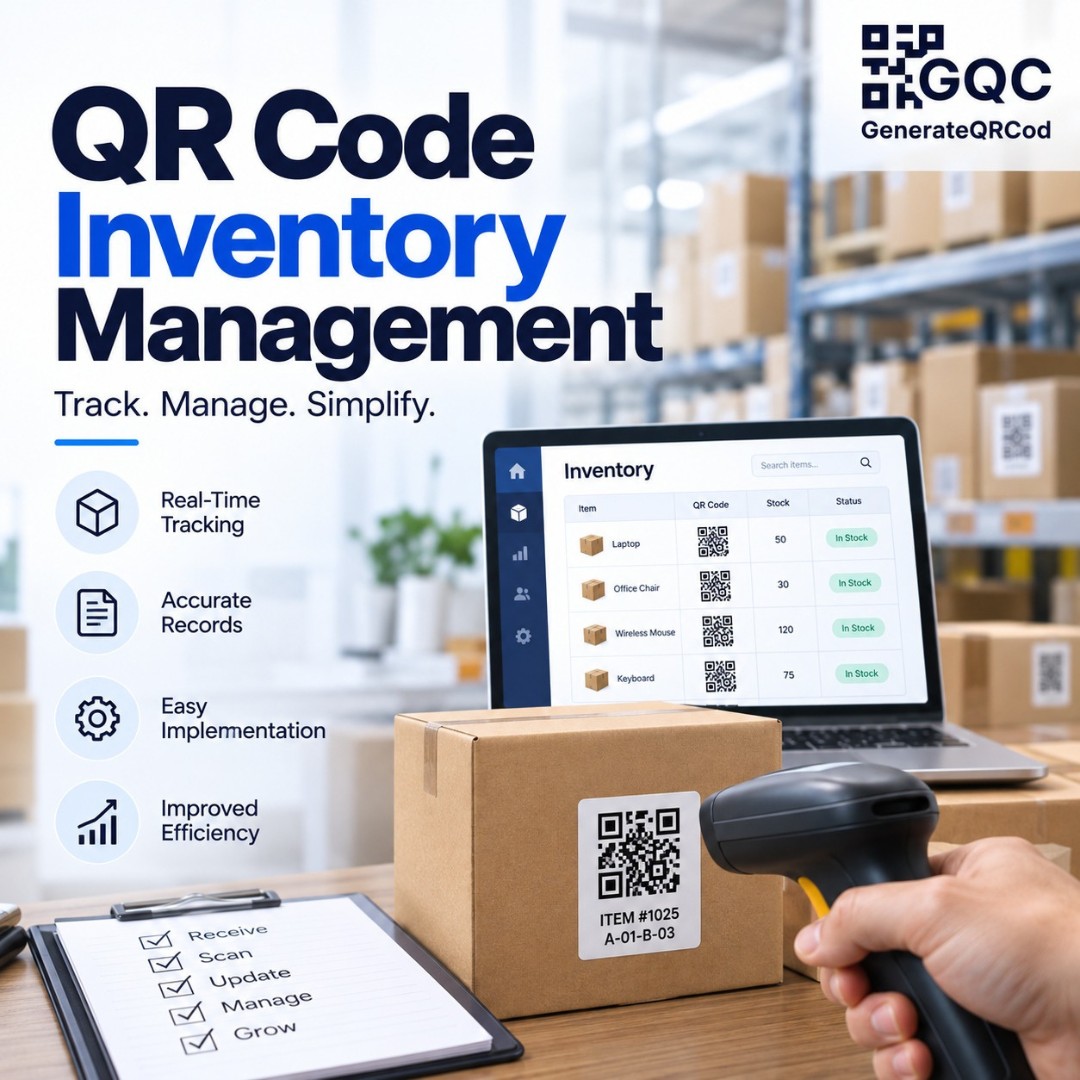
QR code inventory management is a way of tracking stock, tools, or equipment by sticking a QR code label on each item, box, or shelf. When staff scan the label with a phone, they instantly see the item details or open a form to record a change, like stock in, stock out, or a new location.
No special scanner is needed. Any modern smartphone camera can read a QR code.
QR Code vs Barcode for Inventory
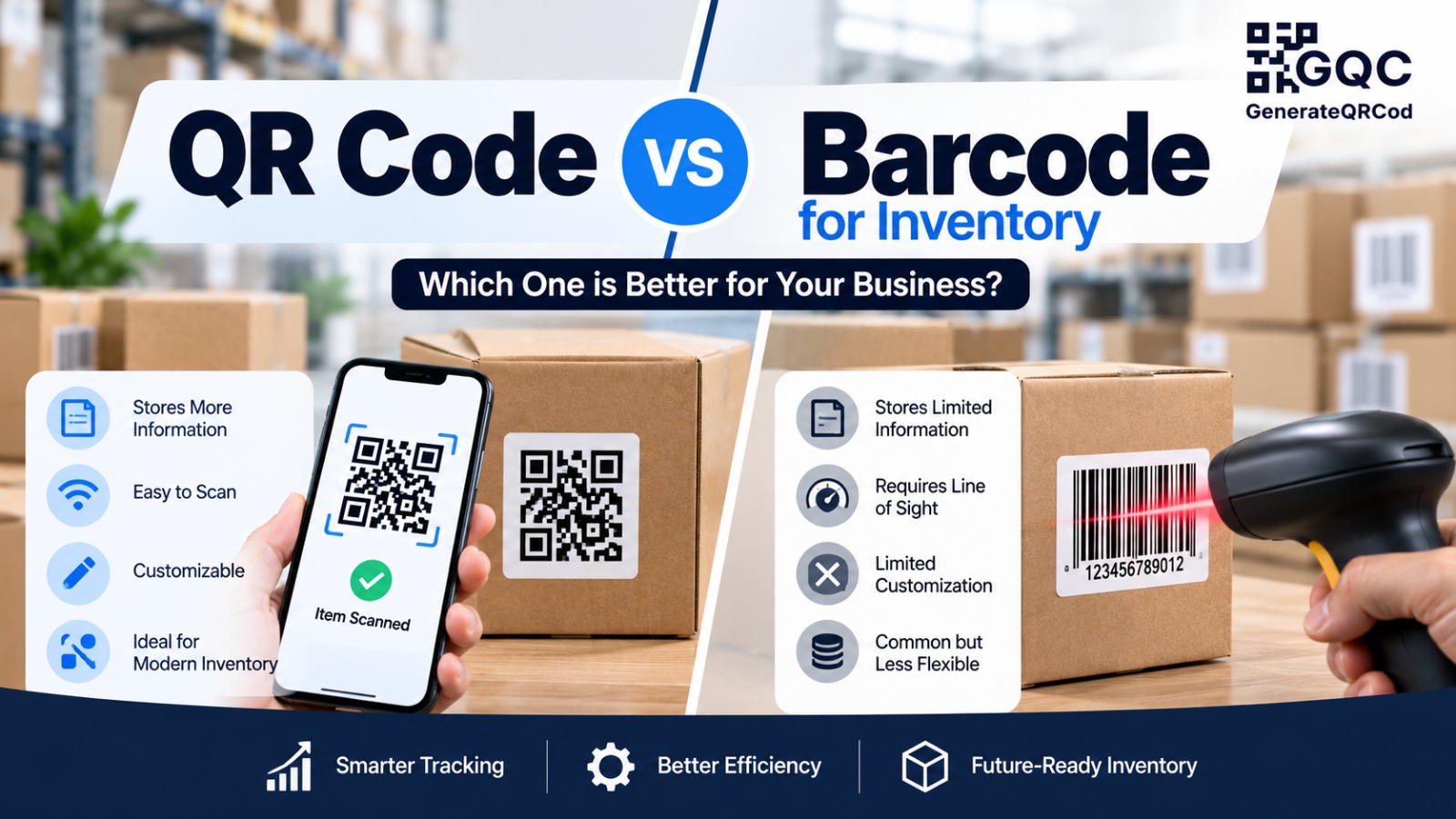
Barcodes have run inventory for decades, and they still work well in big retail chains. But for a small team, QR codes often make more sense.
Point | QR Code | Traditional Barcode |
How it is scanned | Any smartphone camera | Usually needs a barcode scanner |
Data it can hold | Text, links, IDs, contact details | Mostly a short number |
Works if partly damaged | Yes, thanks to error correction | Often fails |
Scanning angle | Any direction | Needs a straight line scan |
Can open a form or sheet | Yes, with a link | No |
The big win is the phone. Your staff already carry the scanner in their pocket.
What Should You Put Inside an Inventory QR Code?
This is the part people overthink. You have two simple options.
The first is plain text. You put the item ID, name, and location straight into the code, something like "SKU 1045, Blue Paint 1L, Rack B3." It works without internet, which is handy in basements and warehouses with bad signal. The downside is that the text can't be changed after printing.
The second is a link. The code opens a web page, a Google Sheet row, or a form where the real record lives. This is more flexible because you update the record, not the label.
Honestly, most small businesses do best with a mix. Keep a short item ID in every code, and let your spreadsheet hold everything else. The ID never changes, so the printed label never needs replacing.
For more on how much text fits in one code, see our guide on QR code data size.
How to Set Up a QR Code Inventory System (Step by Step)
Step 1: List everything you want to track
Start with a simple spreadsheet. Give each item or box a unique ID, a name, a location, and a quantity. Don't try to label the whole store on day one. Pick one shelf or one category first.
Step 2: Create a form to log changes
Here is a trick that works well. Make a Google Form with fields for item ID, action (in or out), quantity, and staff name. Link the responses to your sheet. Then use the form's pre-filled link option to create a unique link for each item, with the item ID already filled in.
Now every scan opens a form that already knows which item it is. Staff only enter the quantity and tap submit.
Step 3: Generate the QR codes
Open GenerateQRCod, choose the URL type for form links or the Text type for offline labels, and paste your content. It's free, with no sign-up. Scan each code once with your phone before you move on.
Step 4: Print durable labels
Print on sticker paper or label rolls, and laminate labels that sit near water, oil, or dust. Download the SVG file for printing because it stays sharp at any size. Add the item name in small text under the code, so people know what they are scanning.
Step 5: Train your team for five minutes
Show staff one scan, one form entry, and where the sheet lives. That's usually enough. The system only works if people actually scan when stock moves, so keep the process fast.
Tips for Inventory QR Code Labels That Last
A few small choices save a lot of reprinting later. Keep labels at least 2 cm wide, and bigger if people scan from a distance, like a shelf label read from the floor. Leave a clear white border around the code. Use black on white rather than fancy colors, because warehouse lighting is rarely kind.
And pick a higher error correction level when labels may get scratched. A slightly damaged code can still scan with it. Our QR code best practices guide goes deeper on size and contrast.
Where QR Code Inventory Tracking Works Best
It shines in places where items move often but the team is small. A retail stockroom. A restaurant pantry where someone needs to know how many oil tins are left. A school science lab tracking microscopes, or an IT team labeling laptops and chargers given to staff. Construction teams use it on tool boxes so they know which site has the drill.
In each case, the label stays the same while the record behind it keeps changing.
What QR Codes Can't Do for Inventory
Let's be honest about the limits. A QR code doesn't count anything by itself. Someone still has to scan and enter the change. If your team skips that step, the numbers will drift again.
And if you manage thousands of SKUs across several warehouses, a dedicated inventory tool with built-in scanning will serve you better. QR labels are a great starting point, not a full ERP.
Final Thoughts
QR code inventory management doesn't need a big budget. Start with one shelf, one spreadsheet, and a stack of printed labels. Once your team gets used to scanning, you'll wonder why you ever counted paint cans by hand at 9 p.m. Create your free inventory QR codes on GenerateQRCod and try it on a single rack this week.