A friend runs a bakery. Last Diwali he printed 500 gift boxes with a QR code on the lid that opened his order form.
Not one order came through it.
The code was fine. The link was fine. The problem was that the code sat right at the edge of the lid, pressed against a gold border, with no white space around it — and phones simply could not lock on.
That is the frustrating part about QR codes. When they fail, they usually look perfect. The pattern is there, the printing is clean, and the phone still does nothing.
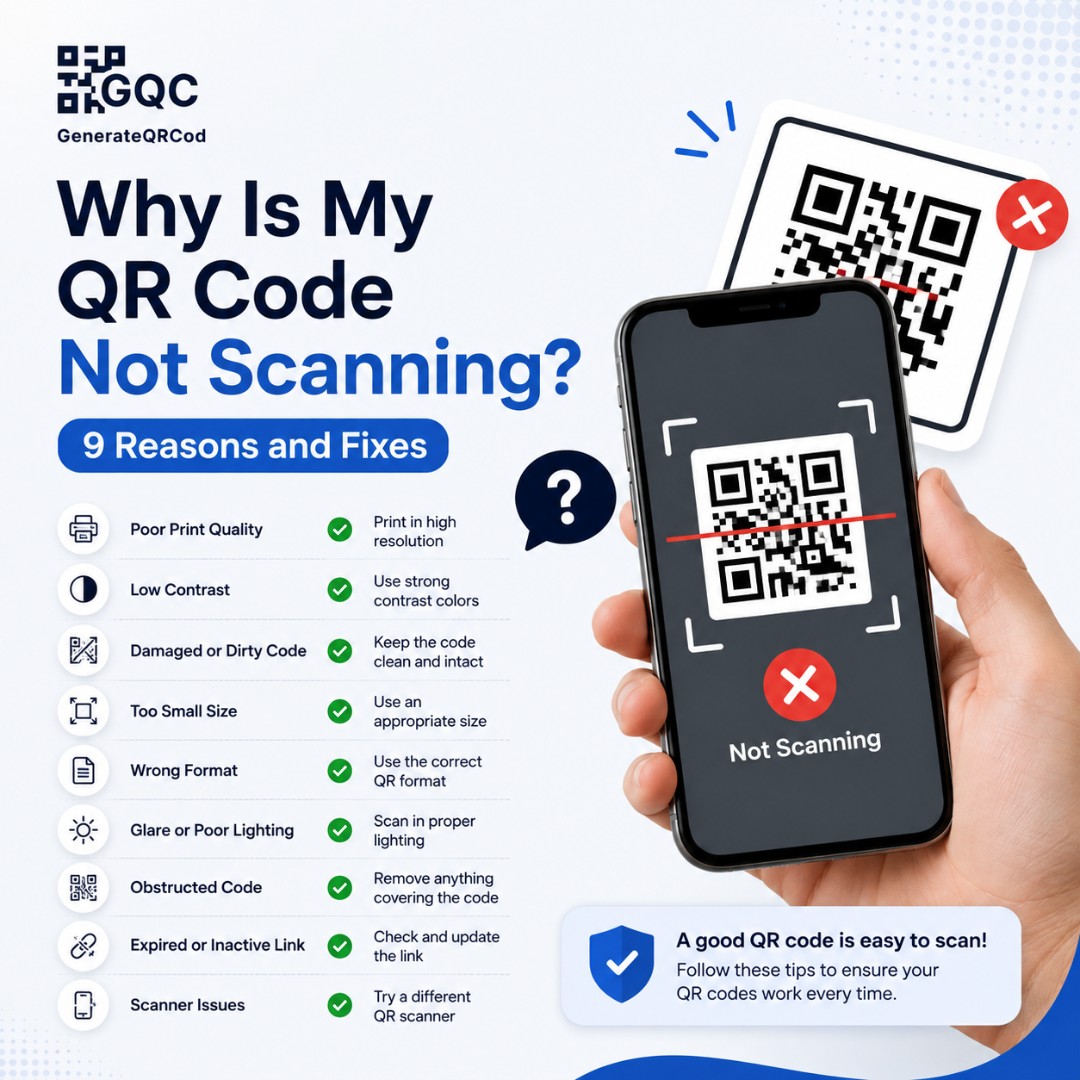
So here are the nine reasons codes actually fail, and what to do about each one.
Why is my QR code not scanning?
A QR code usually fails to scan because it is printed too small for the viewing distance, has no white margin around it, uses low-contrast colours, carries an oversized logo, or was printed from a low-resolution image. Less often the code is fine and the link behind it is broken.
Before you change anything, run one quick test. Open the code on a screen and scan it there. If it works on screen but not in print, the problem is physical — size, contrast, margin or printing. If it fails on screen too, the problem is inside the code itself or the link.
That single test cuts your search in half.
1. The code is too small for the scanning distance
This is the most common cause by a wide margin.
The rule is simple: your code width should be about one-tenth of the distance people scan from. A code read from 50 cm needs to be around 5 cm. From 2 metres, about 20 cm.
For close-range printing — cards, menus, packaging — never go below 2 x 2 cm. Below that, the small squares inside the code get too fine for a phone camera to separate.
Fix: measure the real scanning distance, divide by ten, and reprint at that size. Round up rather than down.
2. There is no quiet zone around the code
Every QR code needs an empty margin on all four sides. This is called the quiet zone, and the standard is four modules wide — roughly 10% of the code’s width.
The scanner uses that blank border to find where the code begins and ends. Without it, the phone cannot tell the pattern apart from the background.
This is what killed the bakery boxes. The code touched a decorative border on one side, and that was enough.
Fix: leave clear white space around the code. No artwork, no text, no coloured blocks creeping in, and never place a code flush against a page edge or a trim line.
3. The colours have too little contrast
Dark pattern on a light background. That is the only combination that works reliably.
Inverted codes — light squares on a dark background — fail on a lot of phone cameras, even though they look striking in a design. Low-contrast pairs like grey on beige, navy on black, or yellow on white fail almost everywhere.
Fix: go back to a dark code on white or a very light tint. If brand colours must be used, keep the code itself dark and put the colour in the background or the frame around it. Test before printing.
4. The logo is too big or the error correction is too low
QR codes carry built-in error correction, which is why a logo in the middle still works. But there is a limit.
There are four levels — L, M, Q and H. Level H allows the most damage or covering, roughly up to 30% of the pattern. If you place a logo without raising the error correction, you are covering data the code needs.
Fix: set error correction to H whenever you add a logo, and keep the logo small — centred, and no wider than about a fifth of the code. Then scan-test it before anything goes to print.
5. The printed image is blurry or pixelated
A code that looks crisp on a laptop can print as soft, fuzzy squares. Fuzzy squares are unreadable squares.
This happens when a small PNG gets stretched to fit a poster, a banner or a standee. PNG is a fixed-resolution format — enlarge it beyond its original size and the edges break down.
Fix: use SVG for anything printed. SVG is vector, so it stays sharp from a visiting card to a hoarding. Keep PNG for screens, WhatsApp and social posts.
6. The surface is glossy, curved or uneven
Glossy lamination reflects light straight back into the camera. Under a shop’s ceiling lights, a perfectly good code can turn into a white glare patch.
Curved surfaces like bottles, cans and tubes distort the pattern. Fabric absorbs ink and softens the edges. Crumpled flyers and folded leaflets break the pattern along the crease.
Fix: prefer matte finish for anything carrying a code. On curved packaging, keep the code small enough to sit on the flattest part and never stretch it around the curve. On fabric, print about 20% larger than usual.
7. The link behind the code is broken
Sometimes the code scans perfectly and the phone still seems to do nothing useful. The scan worked. The destination did not.
Common causes: a typo in the URL, a page that was deleted or moved, a missing https at the start, or a link that only works on your office network.
Fix: scan the code yourself and check where it lands, on mobile data rather than WiFi. If the page has moved, set up a redirect from the old address so every printed code keeps working. This is the single best reason to point codes at a URL you control long-term.
8. The wrong QR type was selected
Most generators offer several content types — URL, text, WiFi, vCard, email, phone, SMS.
Choose Text and paste a web address, and the code stores that address as a plain string. Some phones will then just display the text instead of offering to open it. The code is technically working. It is simply not doing what you wanted.
Fix: pick the URL type for links, WiFi for network details, vCard for contacts, and so on. If you have already printed a Text code, that one cannot be edited — regenerate and reprint.
9. The phone or the scanning conditions are the problem
Occasionally the code is faultless and the phone is the issue.
A dirty or scratched camera lens softens everything — wipe it and try again
Holding the phone too close prevents focus; pull back 15 to 20 cm
Very dim light or harsh direct glare both interfere with detection
Older phones may need Google Lens or the camera’s built-in scanner turned on in settings
No internet means the link cannot open, even though the scan itself succeeded
Fix: before blaming the code, test it on two different phones — one Android, one iPhone. Their cameras handle codes slightly differently, and that comparison tells you quickly whether the code or the device is at fault.
A 60-second troubleshooting checklist
Work through these in order. Most failures are solved by the first four.
Check | What to look for |
|---|---|
Screen test | Does it scan on a monitor? If yes, the print is the problem |
Size | At least 2 cm, or one-tenth of the scanning distance |
Quiet zone | Clear white margin on all four sides |
Contrast | Dark code, light background, never inverted |
Logo | Small, centred, error correction set to H |
File used | SVG for print, not a stretched PNG |
Surface | Matte and flat, not glossy or curved |
Destination | Link opens correctly on mobile data |
Two phones | Test on both Android and iPhone |
How to stop this happening again
Print one sample before you print five hundred. Just one.
Put it on the actual material, at the actual size, and stand where a real customer would stand. Scan it under the lighting it will live under, not at your desk.
If the phone takes longer than two seconds to lock on, something is wrong. A code should scan almost instantly. Anything slower will be abandoned by customers who are far less patient than you are.
And keep the source file. Six months later, when someone needs the code for a new banner, you will want the original SVG rather than a screenshot of a screenshot.
Generate a clean, print-ready QR code
If your current code has too many problems to fix, making a new one takes about thirty seconds. Use our free qr code generator to create a fresh code with adjustable error correction, safe colour options, logo support, and SVG downloads for printing. No sign-up, no watermark, no scan limits.
Then print one sample and scan it before the full run goes ahead.
Five hundred gift boxes is an expensive way to learn about quiet zones.