There is a poster on the wall of a gym near my office. Big, bold, professionally designed. And in the bottom corner, printed about the size of a thumbnail, sits a QR code.
The poster is mounted above head height. You would need to climb on something to scan it.
Nobody has. Obviously.
This is the thing about QR codes on flyers and posters — the design part is easy, and almost every failure happens in the details. Wrong size, wrong placement, wrong file type, no instruction. Get those four right and a printed sheet turns into a measurable marketing channel. You can make the code itself in a minute with a free QR code generator; the rest of this page is about everything that happens after.
What size should a QR code be on a flyer or poster?
Use the divide-by-ten rule. A QR code should be at least one-tenth the width of the distance it will be scanned from. A flyer held in the hand is read from about 30 cm, so a 3 cm code works. A poster on a wall read from three metres needs a code around 30 cm wide.
Most people undersize posters and oversize flyers. Both are fixable in thirty seconds if you check before printing.
Print type | Typical scan distance | Minimum QR size |
|---|---|---|
Handbill / pamphlet (A5) | 25 – 30 cm | 2.5 – 3 cm |
A4 flyer or leaflet | 30 – 40 cm | 3 – 4 cm |
A3 poster at eye level | 1 metre | 10 cm |
A2 / A1 wall poster | 2 – 3 metres | 20 – 30 cm |
Standee or banner | 3 – 4 metres | 30 – 40 cm |
Hoarding | 10 metres and beyond | 80 cm and up |
Where to place the QR code on the design
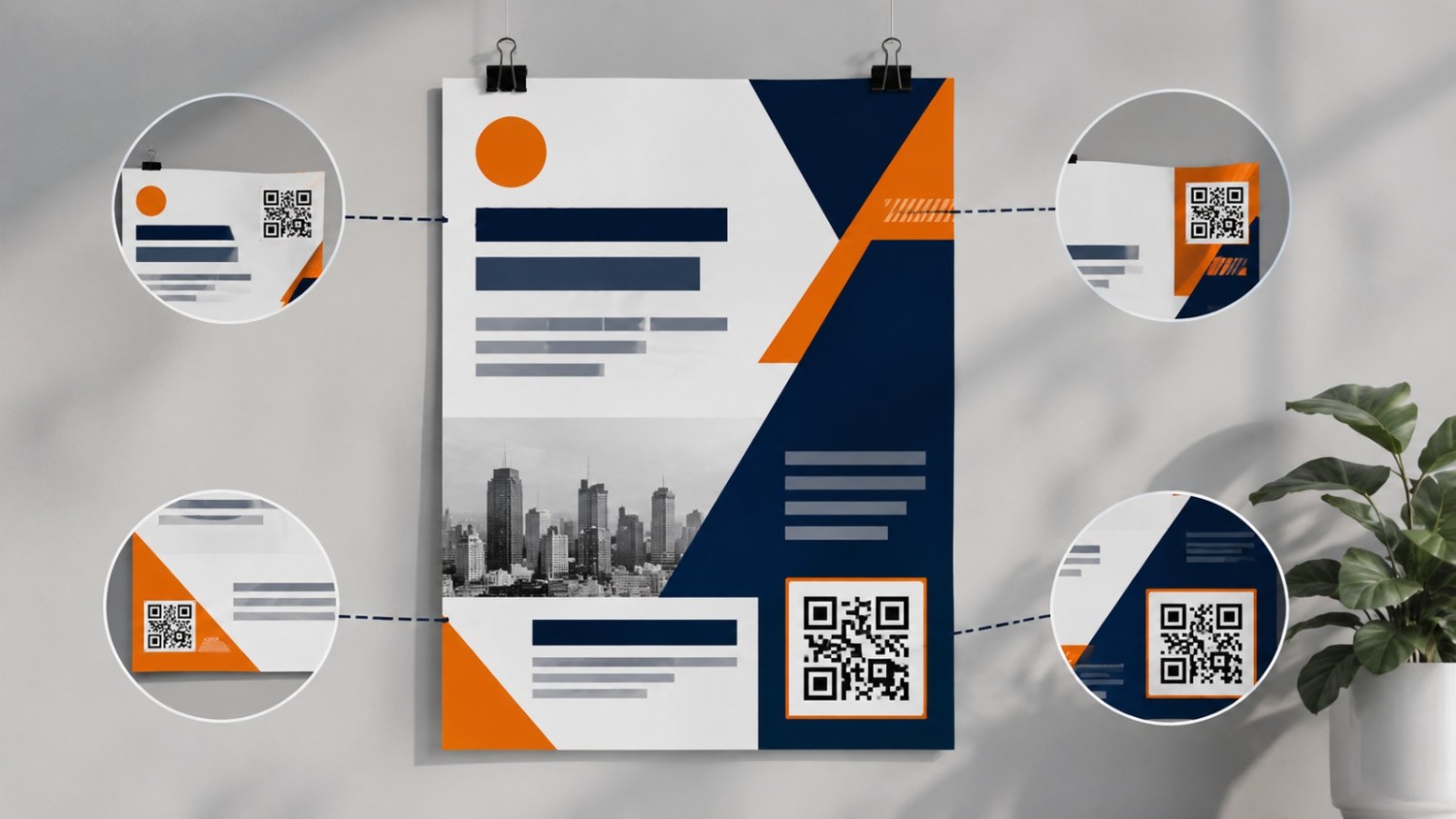
Placement decides whether the code gets scanned or ignored, and the answer is different for flyers and posters.
On a flyer, the bottom-right corner wins almost every time — that is where the thumb naturally sits when someone holds a sheet, and where the eye finishes reading. On a poster, the code belongs between chest and eye height, which usually means the lower third of the design, not the corner.
Placement | Works because | Watch out for |
|---|---|---|
Flyer — bottom-right corner | Natural thumb and reading-end position | Gets trimmed if the bleed is set wrong |
Flyer — beside the offer | Scanned at the moment of interest | Can crowd the main headline |
Flyer — back side | Keeps the front clean | Many people never flip it |
Poster — lower third | Reachable, chest to eye height | Can be blocked by furniture or people |
Poster — top corner | Looks tidy in the layout | Often too high to scan at all |
And leave the code some room. A QR pressed against a headline, a border or a photograph is harder for a camera to lock onto than one sitting in clean white space.
Write a call to action, not just a square
A bare QR code asks people to gamble. They do not know what will open, so most of them do not bother. One short line beside the code fixes this, and it is the highest-impact change you can make to any printed piece.
Tell them what they get, not what to do. “Scan me” is an instruction. “Scan for the full menu” is a reason.
Weak | Better | Why |
|---|---|---|
Scan me | Scan for the full price list | Names the reward |
QR code | Scan to book a free trial class | Adds a clear benefit |
More info | Scan for photos & floor plan | Specific, visual, concrete |
Visit our website | Scan for 15% off — today only | Adds urgency |
Follow us | Scan to join the WhatsApp offers list | Says exactly where they land |
Colour, contrast and the quiet zone
Three printing rules matter more than every design choice you will make.
Keep contrast high. A dark code on a light background is what phone cameras are built to read. Pastel on pastel looks lovely on screen and fails in print.
Never invert it. A light code on a dark background fails on a lot of older phones, even when it looks perfectly clear to you.
Protect the quiet zone. That is the blank margin around all four sides, roughly the width of four small squares. This empty space is what lets the camera find the code at all — designers delete it constantly to save space, and it breaks the scan.
One more, specific to posters: avoid glossy lamination if the poster sits under direct light. Glare across the code surface stops scanning completely, and matte finish costs the same.
File format and print resolution
Download SVG for anything going to a printer, and PNG for digital use. SVG is a vector file, so it stays perfectly sharp whether the printer scales it to 3 cm or 3 metres. A PNG stretched to poster size turns into soft, fuzzy edges that cameras struggle to read.
SVG | PNG | |
|---|---|---|
Best for | Flyers, posters, banners, packaging | Websites, WhatsApp, email, social |
Scales without blurring | Yes, at any size | No — gets fuzzy when enlarged |
Give this to your printer | Yes | Only if at least 300 DPI at final size |
If you must use PNG, make sure it is 300 DPI at the final printed dimension — not 300 DPI at whatever size it was downloaded.
Track which flyer or poster actually worked
This is the part most people skip, and it is the whole reason to use a QR code instead of printing a URL. Add tracking parameters to your link before you generate the code, then read the results in Google Analytics.
yoursite.com/offer?utm_source=qr&utm_medium=poster&utm_campaign=diwali-sale
Change the medium for each format — poster, flyer, standee, newspaper insert. After one campaign you will know which print run earned its cost, and which one you can stop paying for. That single insight usually pays for the entire campaign.
Use a separate code for each location if you distribute in multiple areas.
Keep a simple sheet mapping every code to its design and drop location.
High scans but low conversions means a weak landing page, not a weak poster.
Test before you print 5,000 copies
Print one single test copy at the exact final size. Stick it where the real poster will go. Then walk to where a real person would stand and scan it — with two different phones, ideally one older Android.
Check it in the actual lighting too. A code that scans beautifully at your desk can fail under a dim corridor light or a shop’s glare.
Five minutes. Saves an entire print run.
How to add a QR code to your flyer or poster
Finalise the destination link and add your tracking parameters.
Open a custom QR code generator online and choose the URL type.
Paste the link and keep the code dark on a light background.
Add your logo in the centre with the QR code generator with logo feature and set error correction to High.
Download the SVG and place it in your design at the size the table above recommends.
Write your call-to-action line beside it, keep the quiet zone clear, and test-print once.
Get the code right, then design around it
Decide the size from the scan distance, place it where a hand can reach, write one line saying what people get, and give the printer a vector file. That is genuinely the whole job.
Create a print-ready code now with the best free QR code generator online — custom colours, your logo in the centre, and SVG download that stays sharp at any print size. No sign-up, no watermark, no limits.