Sending money used to mean typing out an email address or phone number — and hoping you got it right. One wrong digit and your money goes to the wrong person. Zelle QR codes fix this problem completely. Instead of typing anything, you just point your camera at a small square code, enter the amount, and hit send. That's it. Money arrives in minutes, straight into a bank account. No fees. No waiting. No mistakes.
In this guide, you will learn exactly what a Zelle QR code is, how to find yours, how to scan one, how businesses use them, and whether they are safe. Everything is explained simply — step by step.
1. What is a Zelle QR Code?
A Zelle QR code is a unique square barcode linked to your Zelle account. When someone scans it with their phone camera, it automatically fills in your payment details — so they can send you money without typing your email or phone number.
Think of it like your personal payment shortcut. Instead of giving your phone number to everyone, you just show your Zelle QR code. They scan it. Done. No spelling mistakes. No sending money to the wrong person.
Every Zelle user gets their own unique Zelle QR code. It is tied directly to your bank account, which means the money always goes to the right place.
2. Does Zelle Have a QR Code?
Yes — Zelle does have a QR code feature, and it is available through most major U.S. banks. Banks including Bank of America, Chase, Wells Fargo, PNC, U.S. Bank, Capital One, and Truist all support Zelle QR codes inside their mobile banking apps.
However, not every bank has added this feature yet. If your bank doesn't show the QR option, you can still use Zelle the normal way — by sharing your phone number or email address.
ℹ️ How to Check if Your Bank Supports Zelle QR Code Open your bank's mobile app and go to Zelle. Tap 'Send' — look for a small QR code icon at the top of the screen. If you see it — your bank supports Zelle QR codes. ✅ If you don't see it — your bank has not added this feature yet. |
3. How to Find Your Zelle QR Code
Finding your Zelle QR code takes less than one minute. Here is exactly where to look:
In the Zelle App
1. Open the Zelle app on your phone.
2. Tap the "Send" button.
3. Look for the QR code icon at the top right corner of the screen.
4. Tap "My Code" to see your personal Zelle QR code.
5. From here, you can save it, print it, or share it via text or email.
In Your Bank's Mobile App (e.g. Bank of America, Chase, Wells Fargo)
6. Open your bank's mobile app.
7. Go to "Zelle" or "Send Money with Zelle."
8. Tap "Send" — you will see a QR code icon at the top of the screen.
9. Tap the QR icon, then select "My Code."
10. Your Zelle QR code will appear on screen.
�� Save & Share Your Zelle QR Code You can share your Zelle QR code in 3 ways: Print it — stick it at your checkout counter, on your desk, or at a market stall. Text or Email it — send it directly to someone who needs to pay you. Save it as an image — add it to invoices, business cards, or your website. |
4. How to Scan a Zelle QR Code to Send Money
Scanning a Zelle QR code to send money is fast and simple. You do not need a separate QR scanner app. Your bank app handles everything.
11. Open your banking app and go to Zelle.
12. Tap "Send" — this takes you to the recipient selection screen.
13. Look for the QR code icon at the top of the screen. Tap it.
14. Your phone camera will open. Point it at the Zelle QR code you want to scan.
15. Your phone reads the code automatically — the recipient's name will appear on screen.
16. IMPORTANT: Always check the name shown matches the person you want to pay. This is your safety check.
17. Enter the amount you want to send.
18. Tap "Send" and the money is on its way. It usually arrives within minutes.
⚠️ Never Skip Step 6 Always confirm the recipient's name before sending. Once you hit Send, the money cannot be reversed. If the name looks wrong — stop. Do not send. Contact the person to get their correct Zelle QR code. |
5. How to Create a Custom Zelle QR Code
Your bank's built-in Zelle QR code is a basic black-and-white square. But many people and businesses want a custom Zelle QR code — one with their logo, brand colors, or a preset payment amount.
A Zelle QR code generator tool lets you create a branded QR code that looks professional. Here is how it works:
19. Go to a QR code generator that supports Zelle payment links.
20. Select "Zelle" as the payment type.
21. Enter your email address or phone number registered with Zelle.
22. (Optional) Enter a preset dollar amount — useful for businesses with fixed prices.
23. Customize it: add your logo, brand colors, or a design that matches your brand.
24. Download your custom Zelle QR code as a PNG or SVG file.
25. Use it on your website, invoices, menus, or wherever customers need to pay you.
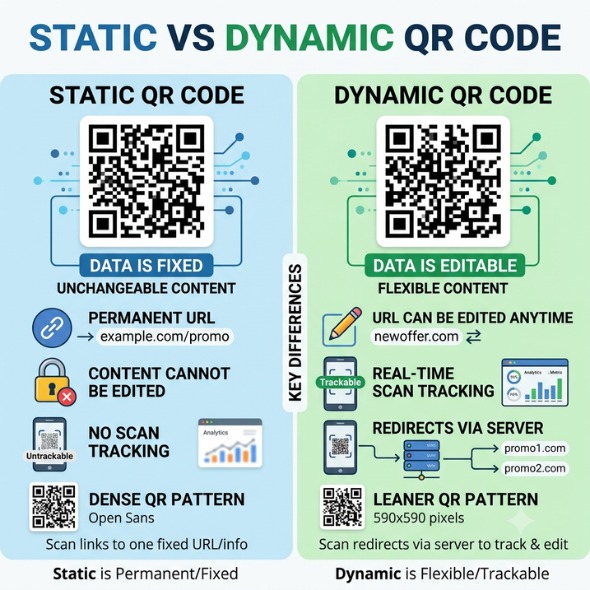
�� Pro Tip — Dynamic vs Static QR Codes Static QR code: Fixed. Cannot be changed after creation. Free. Dynamic QR code: Can be updated any time (change amount, redirect URL). Paid. Tracks scan data. For most small businesses, a static Zelle QR code works perfectly fine. |
6. How to Use a Zelle QR Code for Business
A Zelle QR code for business is one of the easiest ways to accept payments without a card reader or cash. Zelle processes over 2.9 billion transactions per year — and the number keeps growing. Here is how different types of businesses use it:
Business Type | How to Use Your Zelle QR Code |
Retail Shop / Store | Print and display the code at your checkout counter. Customers scan and pay instantly. |
Restaurant or Cafe | Put the code on tables, menus, or receipts. Customers pay without waiting for a card machine. |
Freelancer / Contractor | Add the QR code to every invoice you send. Clients pay in seconds by scanning. |
Market Stall / Pop-up | Print on a small card or display stand. Accept payments even without internet (code works offline). |
Service Provider (cleaner, trainer, etc.) | Add to your business card. Customers can pay you right on the spot. |
Online Seller | Add the code image to your website, emails, or WhatsApp. Buyers scan and pay from home. |
The biggest advantage of using a Zelle QR code for business is that there are zero fees. Zelle does not charge businesses to send or receive money. Compare that to card processors that charge 2–3% per transaction. For a business making $10,000 a month, that's $200–$300 saved every month.
7. Is a Zelle QR Code Safe?
Yes — a legitimate Zelle QR code is very safe. Zelle uses bank-level encryption. Your account details are never shared with the person scanning the code. They only see your name, nothing else.
But like everything digital, scammers can abuse Zelle QR codes too. Here is what to watch out for:
How to Stay Safe — 6 Simple Rules
• Only scan QR codes from people you know and trust. Treat it like handing over cash.
• Always check the name on screen before hitting Send. If the name is wrong — stop immediately.
• Never scan a QR code from a stranger online, in an email, or on a flyer you did not expect.
• Use only your bank's official app to scan codes — not random third-party scanner apps.
• Transactions cannot be reversed. Once money is sent to an enrolled Zelle user, it cannot be undone.
• Report suspicious codes to Zelle at zellepay.com or to your bank directly.
8. Zelle QR Code vs Other Payment Apps
How does a Zelle QR code compare to Venmo, PayPal, and Cash App? Here is a quick comparison:
Feature | Zelle QR Code | Venmo QR Code | PayPal QR Code | Cash App QR Code |
Transfer Speed | Minutes ⚡ | 1–3 business days | Minutes (fee applies) | Minutes |
Fees | Zero ✅ | Free (delayed) or 1.75% | 1.75% for instant | Free (personal) |
Bank-to-Bank Direct | Yes ✅ | No | No | No |
Works in bank app | Yes ✅ | No | No | No |
Business Use | Yes ✅ | Yes | Yes | Yes |
Custom QR Code | Via generator ✅ | Limited | Limited | No |
USA Only | Yes | Yes | No (international) | Yes |
Zelle's biggest advantage is that money goes directly from one bank account to another — instantly and for free. Venmo and PayPal hold your money in a separate balance, which means extra steps to get it into your bank.
9. Common Zelle QR Code Problems — And How to Fix Them
Problem | What's Happening | How to Fix It |
Can't find the QR code icon in my bank app | Your bank may not support QR codes yet | Update your bank app. If still missing, your bank hasn't added this feature yet. |
Scanned the code but the wrong name appeared | You may have scanned the wrong code | Stop. Do not send. Ask the person to show you their code again directly from their phone. |
QR code won't scan | Poor lighting or blurry code | Move to brighter light. Try zooming in. Ask them to show the code on a cleaner screen. |
Recipient says they never received money | They may not be enrolled in Zelle | They will get a text/email invite. Money returns to you automatically after 14 days if they don't enroll. |
I sent money to the wrong person | Scanned wrong code or typed wrong details | Contact your bank immediately. If recipient is enrolled, the payment usually cannot be reversed. |
My Zelle QR code expired or changed | Zelle occasionally updates codes | Go to your app and generate a fresh code. Old printed codes may need to be reprinted. |
Final Thoughts
Zelle QR codes make paying and getting paid as easy as taking a photo. No typing. No mistakes. No fees. No waiting days for the money to clear. Whether you're splitting dinner, paying a contractor, or running a small business — a Zelle QR code is one of the most practical tools available for instant, free payments.
The setup takes under a minute. Find your Zelle QR code in your bank app right now, save it, and start sharing it today.