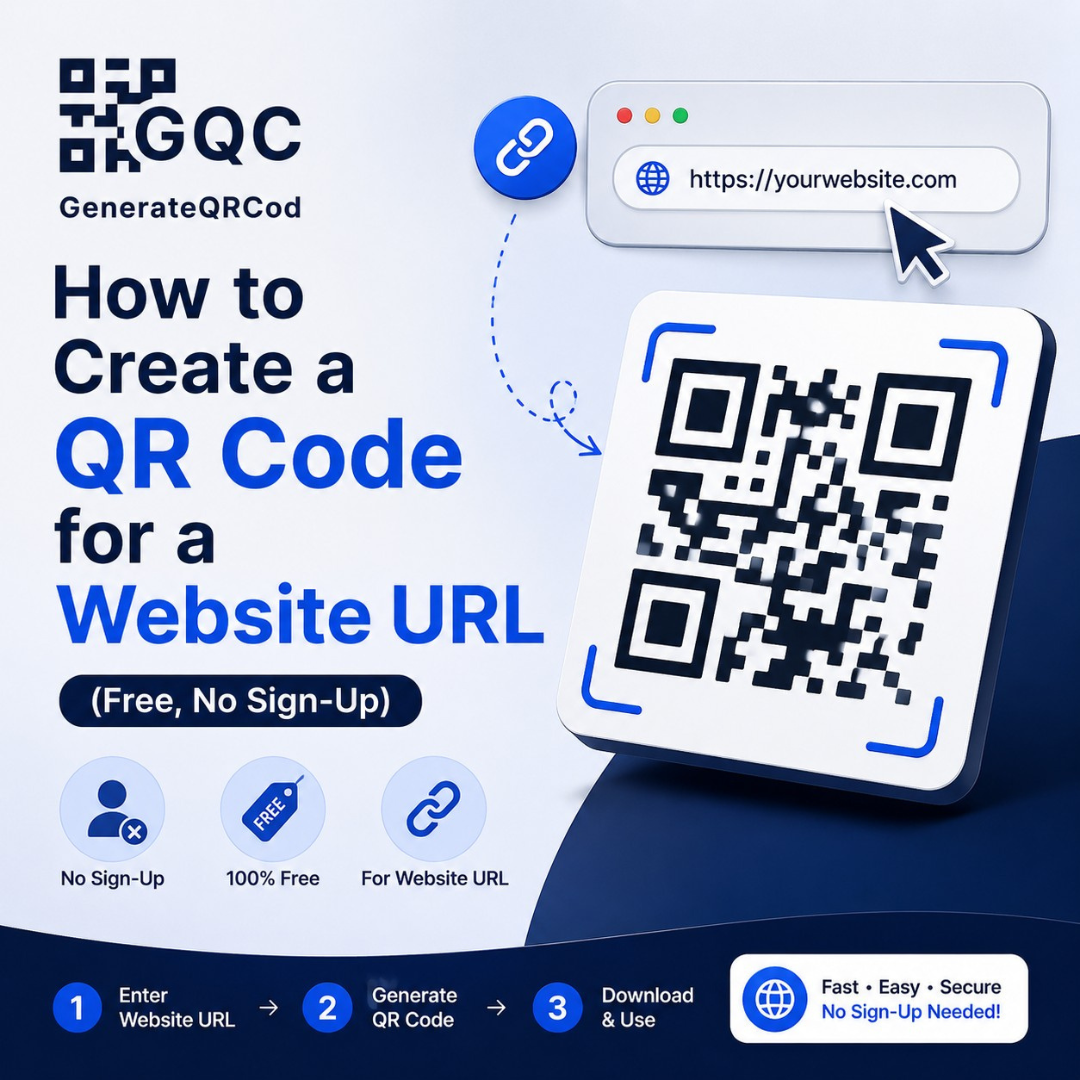
A client called us last year, two days before an exhibition. Standee already printed, 6 feet tall, QR code sitting right in the middle of it.
Nobody had scanned it before printing. Turned out the link had a typo — one missing letter in the domain — and the code opened a parked page selling nothing.
Reprinting cost more than the original job.
Creating a QR code for your website is genuinely a 60-second task. Getting it right is a slightly longer one, and that gap is where most mistakes happen. So here's the full process, start to finish.
How do you create a QR code for a website URL?
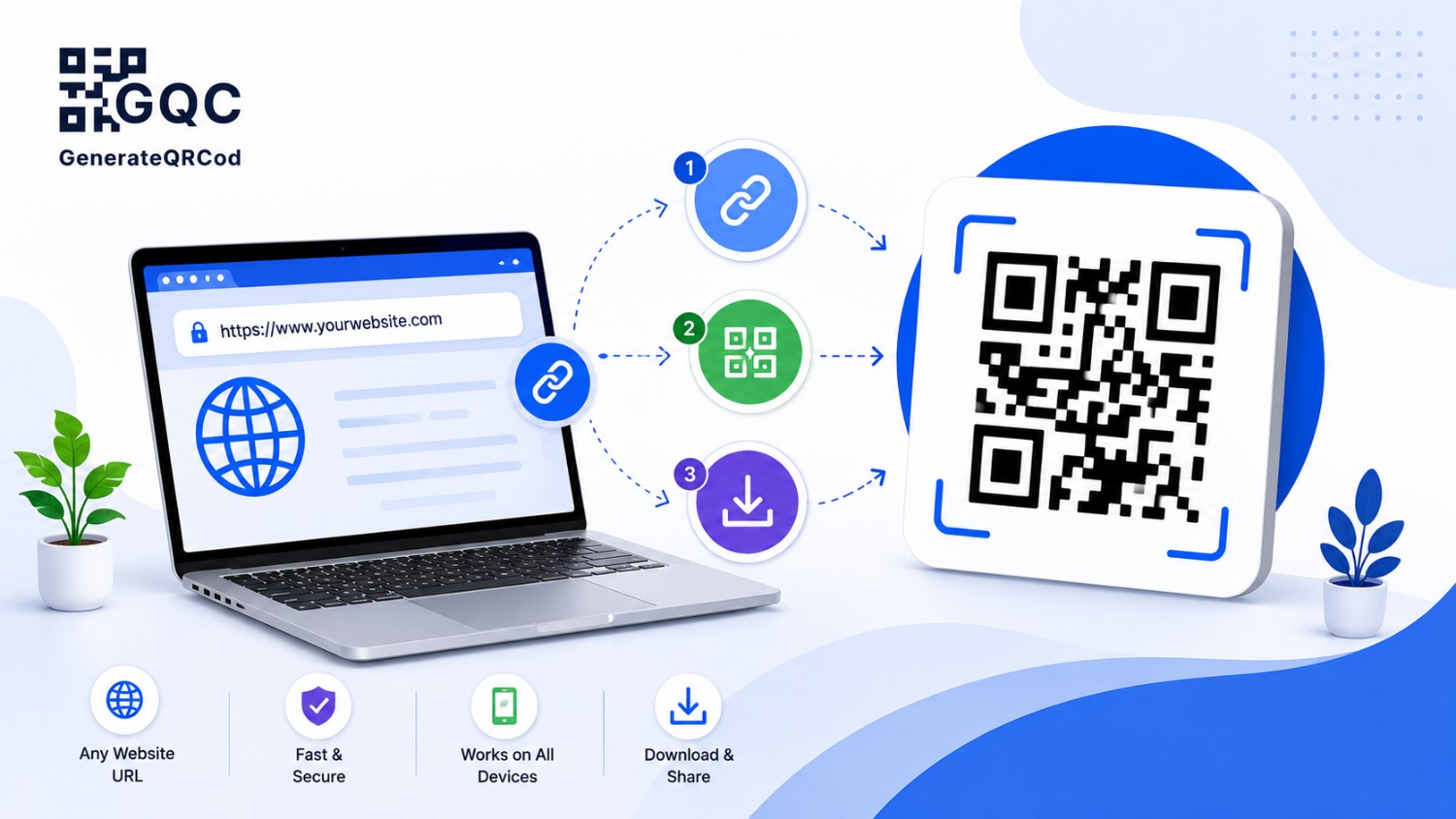
To create a QR code for a website URL, open a free QR code generator, select the URL type, paste your full link starting with https://, customise the colours or add your logo if needed, and download the code as PNG for digital use or SVG for printing. No account or software is required.
That's the short version. Now the details that actually matter.
Step 1: Copy the exact link you want to use
Not your homepage by default. The page that matches wherever the code is going to appear.
If the code is on a product box, link the product page. If it's on an exhibition standee, link the enquiry form. Sending everyone to the homepage and hoping they'll find the right page themselves is the single most common reason QR campaigns underperform.
Copy the link straight from your browser address bar. Do not type it out from memory — that's exactly how the 6-foot standee happened.
And keep the https:// in front. A link without it sometimes gets read as plain text instead of a clickable address, depending on the scanning app.
Step 2: Open the generator and pick the URL type
Go to GenerateQRCod. The tool loads straight into the generator — there's no signup wall, no email verification, nothing to install.
You'll see the content types along the top: URL, Text, vCard, Email, Phone, SMS and WiFi. Pick URL / Website.
This matters more than people assume. Choosing "Text" instead of "URL" will encode your link as a plain string, and some phones will just display it instead of opening it. Same code, completely different behaviour.
Step 3: Paste your link and watch the live preview
Paste the URL into the input box. The QR code appears immediately in the preview panel and updates as you type — no reload button, no waiting.
Take a second to read the link back once it's pasted. Character by character if it's going to print. This is the last easy moment to catch a mistake.
Step 4: Customise the colours and add your logo
Optional, but worth doing if the code is going on branded material.
You can set the foreground and background colours using full hex control, so the code can match your exact brand palette. One rule though — keep it dark code on a light background. Inverted codes (light on dark) fail on a lot of phone cameras, and low-contrast combinations like grey on cream fail on almost all of them.
For the logo, upload your file and it sits in the centre of the code. QR codes carry built-in error correction, which is why covering the middle still works. Set the error correction level to H (high) whenever you add a logo — it builds in extra redundancy so the code stays readable even with part of the pattern covered.
Then scan-test it. Always. A logo that's slightly too large is invisible to your eye and fatal to the scanner.
Step 5: Download as PNG or SVG
Two buttons, two different purposes.
PNG is for anything on a screen — websites, emails, WhatsApp, social posts, PDFs meant for viewing.
SVG is for anything going to a printer. It's vector, which means it scales from a business card to a hoarding without a single blurred edge. If your designer asks for the "print file", send the SVG.
Both download instantly, both are free, and neither carries a watermark. The tool doesn't store your QR content on its servers either, which is worth knowing if you're generating codes for internal or client links.
What size should a website QR code be when printed?
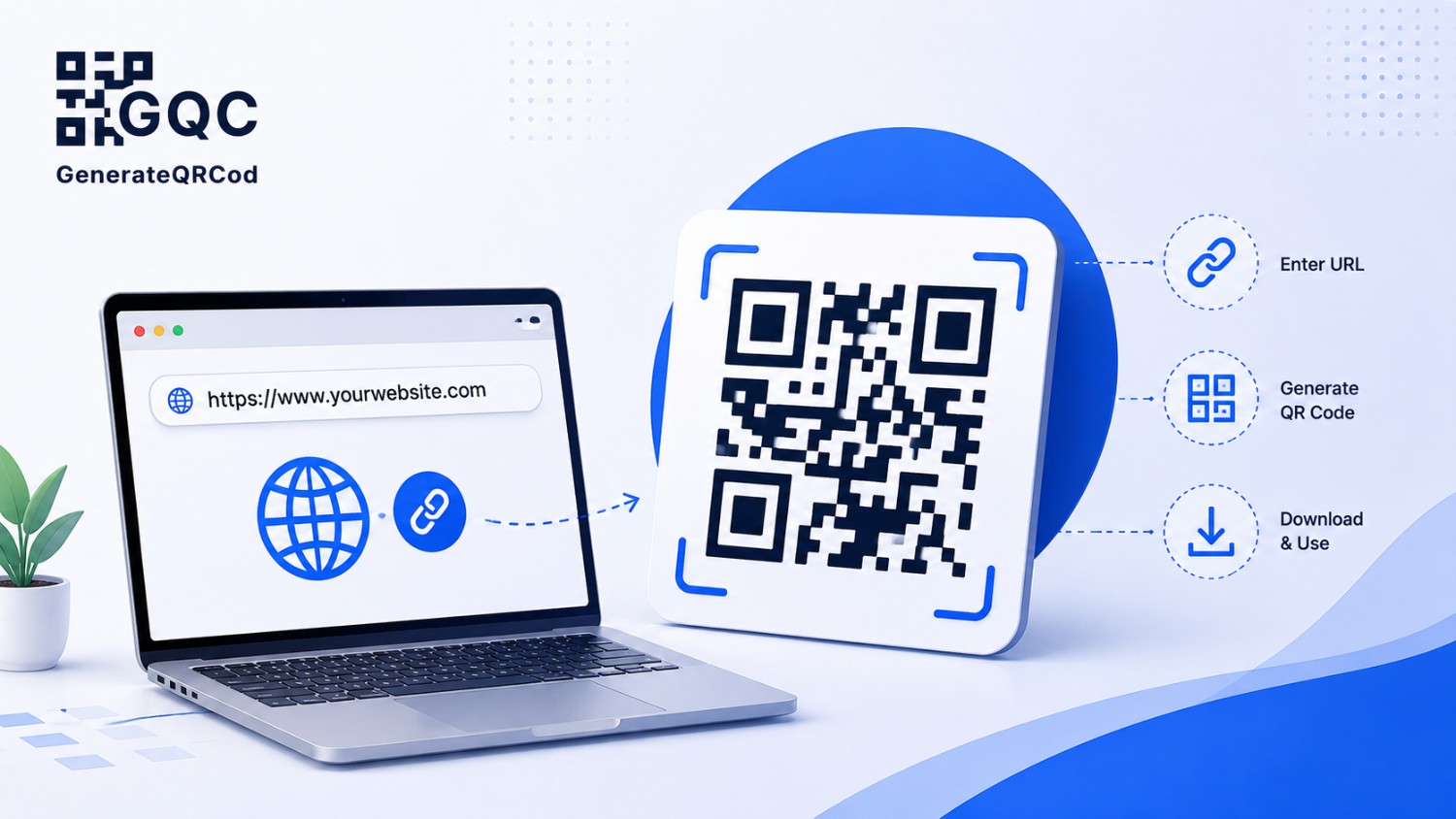
Minimum 2 x 2 cm for close-range scanning — visiting cards, menus, packaging, leaflets held in the hand.
For anything scanned from a distance, use the 1:10 rule. A code meant to be scanned from 1 metre away needs to be roughly 10 cm wide. From 3 metres, around 30 cm. Hoardings and standees need far bigger codes than most designers instinctively make them.
Also leave white space around the code — at least four modules' worth, which is the width of four small squares in the pattern. Cramming a code right up against artwork or a page edge causes scan failures that look completely random.
Test it before it goes anywhere
Three quick checks, and they take under a minute:
Scan it with an Android phone and an iPhone, because their default cameras handle codes slightly differently. Then scan the printed proof, not just the screen version — ink bleed on matte paper can soften edges enough to matter. Finally, open the scanned link on mobile data instead of WiFi, so you see the real loading speed a customer will experience.
If the page takes six seconds to load, fix the page before you print the code.
Static QR codes and what they mean for your link
The QR code you create for a URL is static — the link is baked into the pattern itself. It never expires, works forever, and costs nothing.
But it also can't be edited later. So if there's any chance the destination page might move, point your code at a URL you control long-term and set up a redirect on your side if the page changes. That way the code stays valid even when the content moves.
Dynamic codes, which let you swap the destination without reprinting and show scan analytics, are launching on GenerateQRCod soon.
Where website QR codes work best
Product packaging linking to how-to videos. Invoices linking to a feedback form. Exhibition standees linking to a brochure download. Restaurant table cards linking to a digital menu. Delivery boxes linking to a review page. Newspaper ads linking to a limited-time offer.
The pattern in all of these — the code replaces typing. Wherever a customer would otherwise have to remember and enter a URL, a QR code removes that friction entirely.
Make Your Website QR Code Now
You don't need software, a subscription, or a design team for this. Pick URL, paste your link, add your logo if you want one, download the SVG, and send it to print.
Use our free qr code generator — 7+ QR types, logo and colour customisation, PNG and SVG downloads, no sign-up ever.
Just scan it once before it goes on a 6-foot standee. Learn from our client.