A coaching institute prints flyers for three areas of the city. Same design, same offer, same QR code. At the end of the month, 90 students have enquired through the code. Great news.
But which area brought them? Nobody knows. So next month, they print the same number of flyers everywhere again, including in the area that may have brought almost nothing.
One code for everything hides the most useful answer. Running multiple QR code campaigns, with a separate code for each channel or location, fixes that. This guide shows you how to plan them, name them, and track results, even without paying for a dynamic QR code tool.
What Are Multiple QR Code Campaigns?
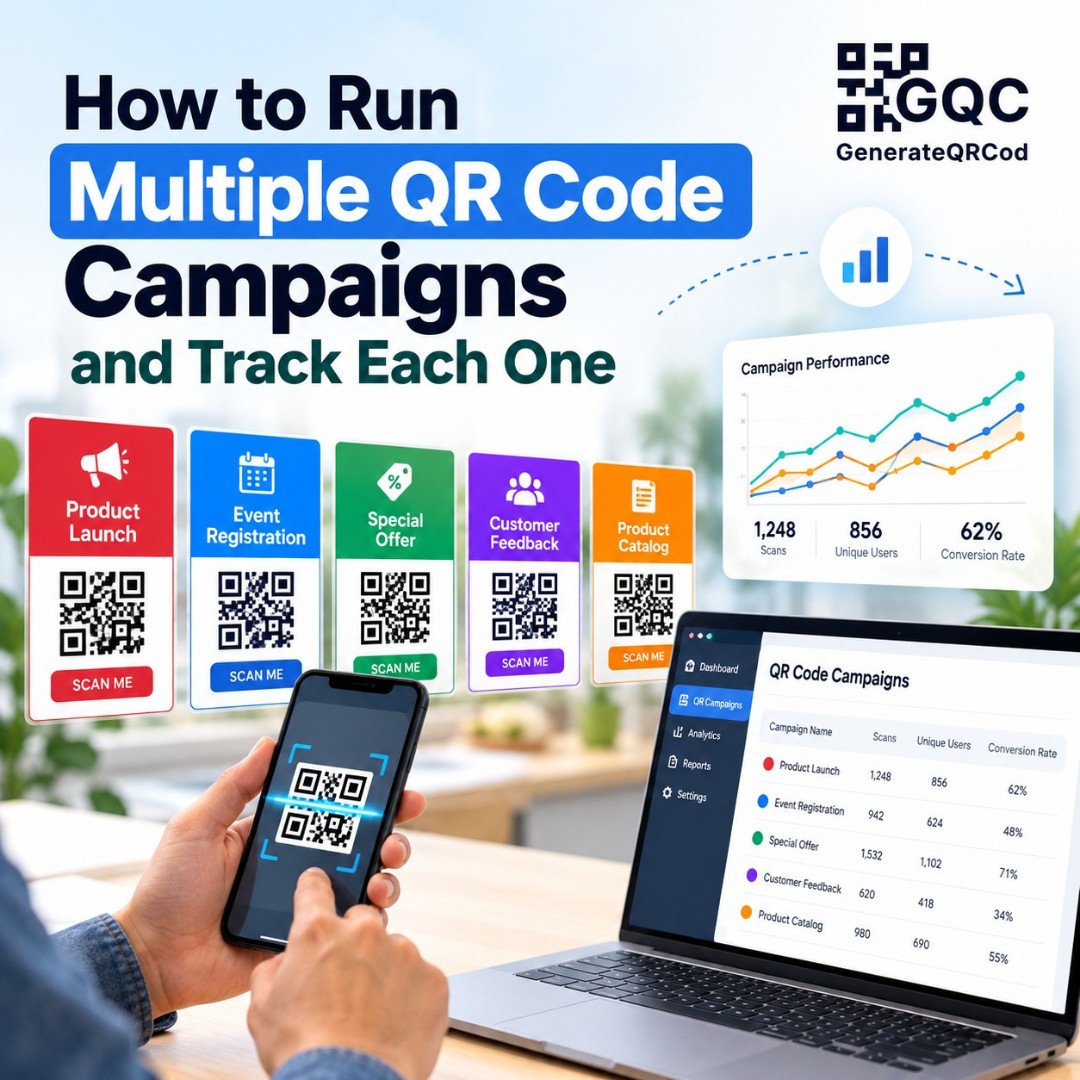
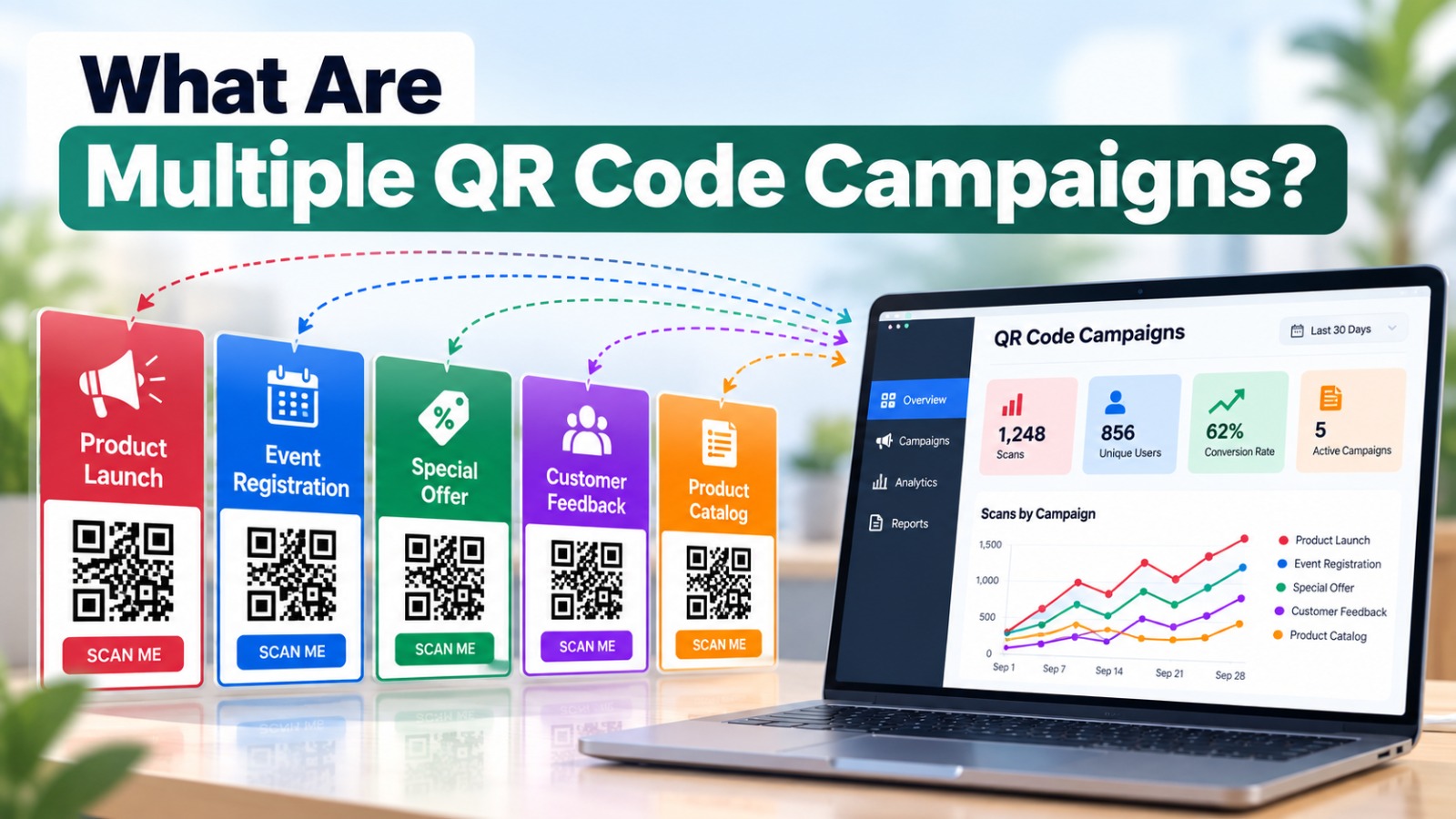
Multiple QR code campaigns means using a different QR code for each place, channel, or offer instead of one code everywhere. Each code leads to a slightly different link, so you can see which flyer, poster, store, or product brought the most visits and customers.
When Should You Use More Than One QR Code?
Not every business needs ten codes. But separate codes make sense when you want to compare something.
By channel, like flyers against newspaper ads against shop posters. By location, such as different branches, cities, or neighborhoods. By offer, when you want to see if "10% off" beats "free delivery." By time period, for example a Diwali campaign against a New Year campaign. Or for simple A/B tests, where two poster designs have different calls to action.
If you're not going to look at the results, one code is fine. Tracking only helps if someone reads the numbers.
Step 1: Plan a Simple Naming System
This sounds boring. It will save you a headache later.
Before making any codes, decide how you'll name each campaign. Keep it lowercase, short, and consistent. Here's an example for the coaching institute:
Where the code goes | Source | Medium | Campaign |
Flyers in Area A | flyer-area-a | summer-batch | |
Flyers in Area B | flyer-area-b | summer-batch | |
Newspaper ad | newspaper | summer-batch | |
Poster at the institute | poster-office | summer-batch |
Save this table somewhere your team can see it. Six months from now, you'll want to know what "flyer-area-b" meant.
Step 2: Choose How You'll Track Scans
There are two main ways to track multiple QR codes.
Option A: Dynamic QR codes
Dynamic QR code platforms show scan counts for each code in a dashboard, and let you change links later. It's convenient, but it usually needs a paid plan, and the codes can stop working if you cancel.
Option B: Free tracking with UTM links and Google Analytics
If you already have Google Analytics on your website, you can track each static QR code for free. You add small tags to the end of your link, called UTM parameters. They tell Analytics where the visitor came from.
A tagged link looks like this: yoursite.com/admissions?utm_source=flyer-area-a&utm_medium=print&utm_campaign=summer-batch
You don't have to type these by hand. Google's free Campaign URL Builder creates them for you. Just fill in your website address and the names from your table.
Step 3: Keep the QR Codes Short and Clean
Here's a catch with UTM links. They're long. And long links make QR codes dense and harder to scan, especially on small flyers. Our guide on QR code data size explains why.
A neat fix is to create short pages on your own website, like yoursite.com/flyer-a, and redirect each one to its full UTM link. The QR code holds the short address, while the redirect carries the tracking tags. As a bonus, you can change where each short page goes later. See how to redirect a QR code for the setup.
Step 4: Create and Label Each QR Code
Now generate a separate code for each short link on GenerateQRCod. It's free, with no sign-up, and you can add your logo and colors.
Name every downloaded file clearly, like "qr-flyer-area-a.svg." This matters more than it seems. When codes look identical, it's very easy to send the wrong file to the printer. Keep the same design across all codes so the test is fair, and only change the link.
Scan each code before printing, and check that it opens the right page.
Step 5: Read the Results
In Google Analytics 4, go to Reports, then Acquisition, then Traffic acquisition. Change the main table dimension to Session campaign or Session source. You'll see visits from each code listed separately.
Look beyond visits too. If you've set up form submissions or purchases as key events, check which code brought people who actually took action. A flyer with fewer visits but more enquiries is the real winner.
One honest note. Analytics counts website visits, not raw scans. If someone scans but the page fails to load, or they have tracking blocked, that visit won't appear. So treat the numbers as a strong comparison, not a perfect count.
Common Mistakes with Multiple QR Codes
The biggest one is mixing up files and printing the Area A code on Area B flyers. Clear file names prevent this. Another is changing the design and the offer at the same time, which makes it impossible to know what caused the difference.
Some businesses put three QR codes on one poster. That confuses people, and confused people don't scan. Keep one code per printed piece, with one clear call to action. Our post on QR code scan psychology explains why clarity matters so much.
And finally, forgetting to check the results. Put a reminder in your calendar two weeks after launch.
Final Thoughts
Multiple QR code campaigns turn guesswork into clear answers. You'll know which area, channel, or offer actually brings customers, and you can spend your print budget where it works. Plan your names, tag your links, keep codes short, and check the numbers. Create a separate free QR code for each campaign on GenerateQRCod and start your first comparison this month.