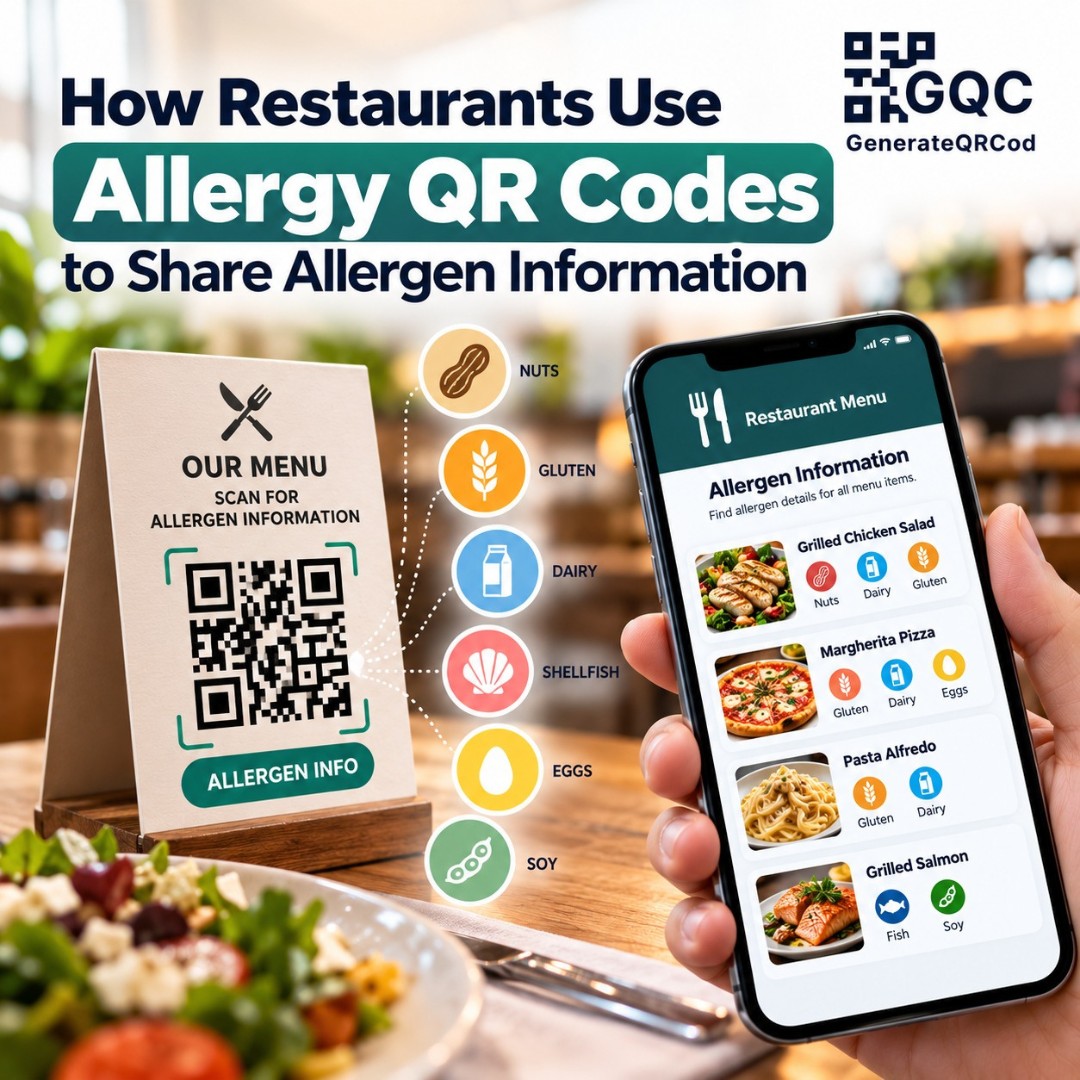
A family sits down for dinner. The mother asks the waiter if the paneer tikka has any nuts, because her son is allergic. The waiter pauses, says "I don't think so," and goes to check. He comes back five minutes later, still not fully sure.
That pause is uncomfortable for everyone. For the family, it's worrying.
Allergy QR codes for restaurants help cut down that uncertainty. They give guests a quick way to see dish-by-dish allergen details, while staff get a reliable source to check instead of guessing. This guide explains how they work, what to include, and how to set one up in an afternoon.
A quick note before we start: this article is general guidance, not legal advice. Food allergen rules vary by country, so always check what applies where you operate.
What Is an Allergy QR Code?
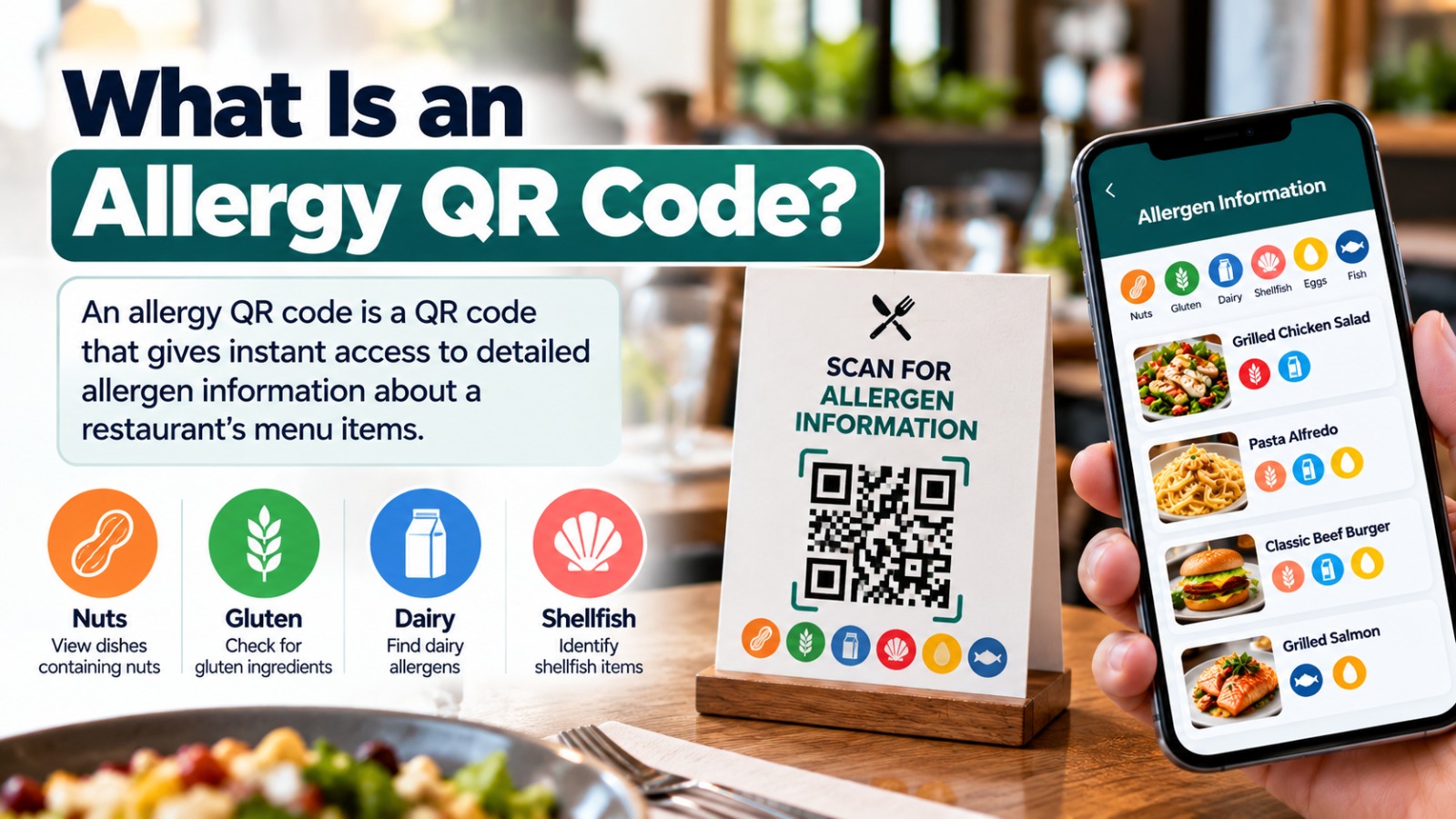
An allergy QR code is a QR code placed on a menu, table, or counter that opens a page listing the allergens in each dish. Guests scan it with their phone to check ingredients like milk, nuts, gluten, or eggs before ordering. The restaurant updates the page whenever recipes change, so the printed code stays the same.
Why Allergen Information Matters for Restaurants
Food allergies can cause serious and sometimes life-threatening reactions. People managing an allergy have to avoid their trigger foods completely, which means they depend on the restaurant getting it right.
Many countries also have rules. In the UK, food businesses must tell customers if food contains any of 14 specified allergens, and the Food Standards Agency's allergen guidance explains how. In the US, the FDA lists nine major food allergens for labeling, which you can read about on its food allergies page. Other countries have their own lists.
Region | Main allergens covered |
UK and EU (14 allergens) | Celery, cereals containing gluten, crustaceans, eggs, fish, lupin, milk, molluscs, mustard, peanuts, sesame, soybeans, sulphur dioxide and sulphites, tree nuts |
US (9 major allergens) | Milk, eggs, fish, crustacean shellfish, tree nuts, peanuts, wheat, soybeans, sesame |
Why Use a QR Code for Allergen Information?
A printed menu has limited space. You can't fit a full allergen breakdown for 60 dishes next to their names without the menu turning into a spreadsheet.
A QR code solves that. The menu stays clean, and the detailed information sits one scan away. You can update it the same day a supplier changes an ingredient, instead of reprinting. Guests can read it privately at their own pace, which some prefer to asking out loud. You can even add the same page in more than one language for tourists.
It also helps staff. New servers don't have to memorize every recipe. They can open the same page and give a confident answer.
What to Include on Your Allergen Information Page
The QR code is only as useful as the page behind it. A good allergen page includes a few things.
A clear allergen matrix
This is a simple table with dishes down the side and allergens across the top. Here's a small example:
Dish | Milk | Gluten | Nuts | Eggs | Soy |
Paneer Tikka | Yes | No | No | No | No |
Veg Biryani | Yes | No | Yes (cashew) | No | No |
Garlic Naan | Yes | Yes | No | May contain | No |
Dal Tadka | Yes (ghee) | No | No | No | No |
Mark specific ingredients where helpful, like "cashew" or "ghee," because people know their triggers in detail.
Cross-contact warnings
Be honest about shared kitchens. If the same fryer is used for fish and fries, or nuts are ground on the same counter, say so. "May contain" notes matter as much as the main list.
A "last updated" date
This small line builds trust. Guests know the information is current.
A reminder to speak with staff
Always end the page with a line like: "Please tell our staff about any allergy before ordering." The QR code supports the conversation. It should never replace it.
How to Create an Allergy QR Code (Step by Step)
Step 1: Build the allergen page
Create the page on your restaurant website, like yourrestaurant.com/allergens. If you don't have a website, a clean, mobile-friendly page or document shared through a stable link can work, but a page on your own site is best because you control it.
Step 2: Keep the link stable
Use one address and never change it. When the menu changes, update the page content, not the link. If you ever need to move the page, set up a redirect. Our guide on how to redirect a QR code explains how.
Step 3: Generate the QR code
Open GenerateQRCod, choose the URL type, and paste your allergen page link. Add your restaurant logo and colors if you like. It's free, with no sign-up. Download SVG for print.
Step 4: Print with a clear label
Place the code on menus, table tents, and near the counter, with a short line like "Scan for allergen information. Please also inform our staff." Keep it at least 3 cm wide on table cards, with strong contrast. More sizing tips are in our QR code best practices guide.
Step 5: Test and train
Scan every printed code with two phones. Then show your team where the page is and how to use it when guests ask.
Keep Your Allergen Information Accurate
This is the part that actually protects guests. Assign one person to update the page whenever a recipe, supplier, or cooking oil changes. Check it on a fixed schedule too, like the first day of every month. A QR code that shows outdated allergen details is worse than no QR code at all.
Limits of Allergy QR Codes
Be realistic. Not every guest has a smartphone, battery, or signal. Some older guests may not be comfortable scanning. So keep a printed allergen folder at the counter, and make sure staff can still answer questions verbally. In the UK, for example, businesses giving allergen information verbally must still signpost customers to where the information can be found.
Final Thoughts
Allergy QR codes for restaurants don't replace care in the kitchen or honest conversations with guests. But they make accurate information easy to find, for guests and staff alike. Build a clear allergen page, keep it updated, and put the code where people can see it. Create your free allergen QR code on GenerateQRCod, and next time a parent asks about nuts, nobody has to guess.