A customer walks past your shop, sees your board, and pulls out her phone. She wants to ask if you deliver. Now she has to type ten digits, save the contact, open WhatsApp, search for it, and start a chat. Five steps. Most people quit at step two.
Now imagine the same board with a small square printed on it. She points her camera. WhatsApp opens with your chat already loaded and a message already typed. One second. Done.
That square is a WhatsApp QR code, and it is one of the simplest things a business can add this year.
What is a WhatsApp QR code?
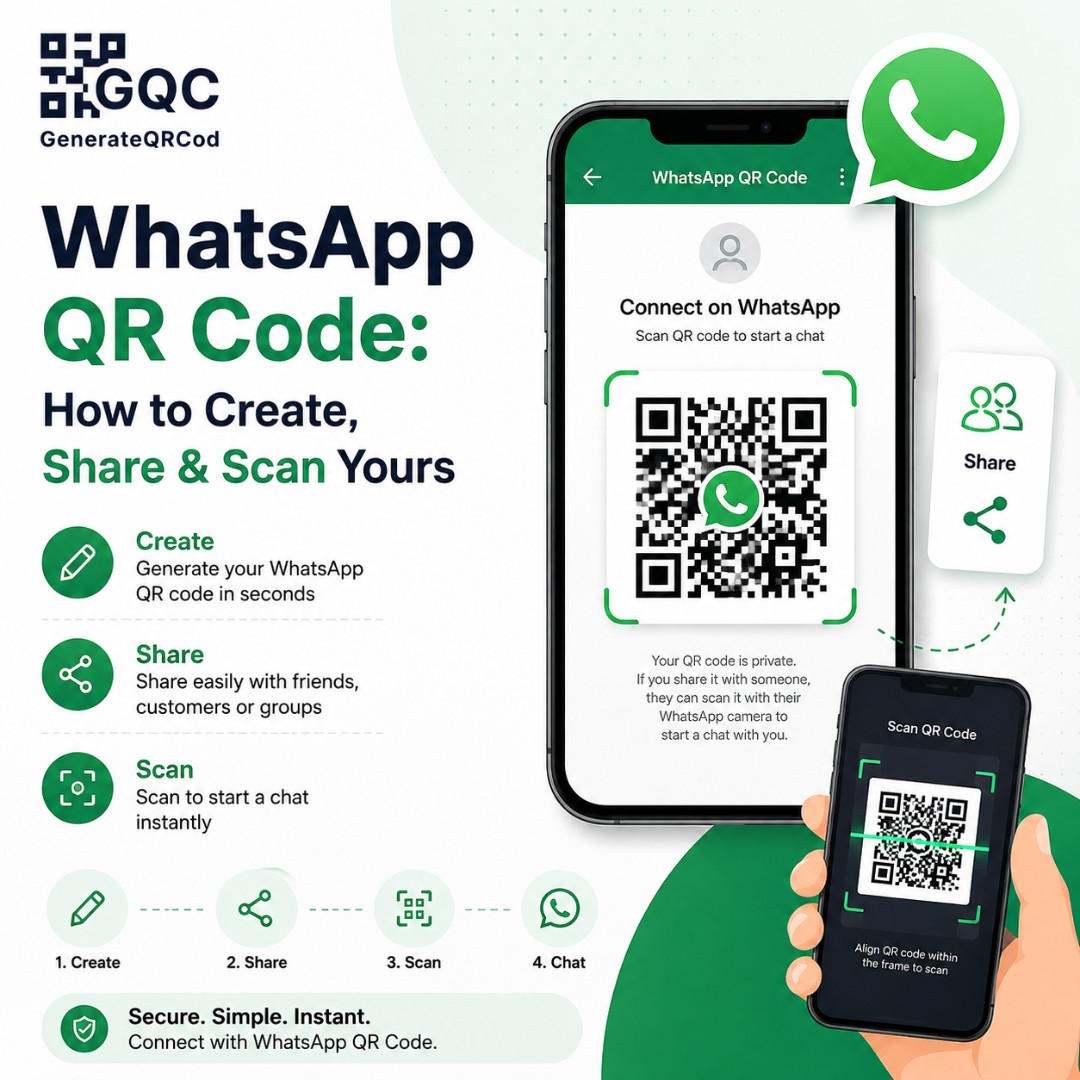
A WhatsApp QR code is a scannable square that opens a WhatsApp chat with a specific number, without anyone needing to save that number as a contact first. When someone scans it with a phone camera, WhatsApp launches instantly and the chat window is already open, ready to send.
There are actually two different things people call a "WhatsApp QR code", and mixing them up causes a lot of confusion.
The first is the WhatsApp Web QR code — the big code you see on web.whatsapp.com when you want to use WhatsApp on a laptop. You do not create that one. You only scan it.
The second is a contact QR code — your own code that other people scan to message you. This is the one businesses actually want. And this is the one you can build in under a minute with a free QR code generator.
How to create a WhatsApp QR code (the wa.me method)
The trick is a link format WhatsApp officially supports: wa.me. Turn that link into a QR code and you are finished.
Here is the exact process:
• Step 1 — Write your number in full international format, with no plus sign, no spaces, no dashes. An Indian number 98765 43210 becomes 919876543210. A US number becomes 15551234567.
• Step 2 — Build the link: https://wa.me/919876543210
• Step 3 — Want a message pre-typed for the customer? Add it: https://wa.me/919876543210?text=Hi,%20I%20want%20your%20price%20list
• Step 4 — Open the WhatsApp QR code generator on GenerateQRCod, pick the URL type, and paste your link.
• Step 5 — Add your logo in the centre, set your brand colours, then download PNG for social media or SVG for printing.
That pre-filled message part in Step 3 is worth pausing on. Most businesses skip it, and they shouldn’t. When the customer’s first message is already written for them, replies go up — because now nobody has to think about how to start the conversation.
Small thing. Big difference.
How to find your WhatsApp QR code inside the app
WhatsApp gives you a built-in code too, and it takes about ten seconds to find.
On WhatsApp Messenger, tap Settings, then tap the small QR icon next to your name. On WhatsApp Business, go to Settings, then Business tools, then QR code — you will also see a short link there that you can copy.
So why would anyone use a generator instead?
Because the in-app code is plain black and white, it carries no logo, it cannot hold a pre-written message, and you cannot download it as a print-ready SVG file. For a WhatsApp status or a quick share, it is fine. For a shop board, a flyer, a menu card, or product packaging, it looks unfinished next to a branded one.
How to scan a WhatsApp QR code
To scan a WhatsApp QR code, open your phone camera, point it at the code, and tap the link that appears on screen. WhatsApp opens the chat automatically. You can also scan from inside WhatsApp by tapping the QR icon in Settings and switching to the Scan Code tab.
Already have the code saved as a photo? Open WhatsApp, tap the QR scan icon, then tap the small gallery button in the corner and choose the picture. It reads codes from screenshots too — we covered why that works in our guide on whether screenshots of QR codes work.
Where businesses actually put these codes
The best placements are the ones where a customer already has a question in their head but no easy way to ask it.
• Shop entrance and billing counter — "Message us for home delivery"
• Restaurant table tents and menu cards — orders, feedback, reservation requests
• Product packaging and warranty cards — support without a helpline number
• Invoices, visiting cards, and brochures — reorders and follow-ups
• Delivery vehicles and shop shutters — visible even when you are closed
• Instagram bio, WhatsApp status, and email signature — digital placements cost nothing
A furniture showroom we know printed the code on their price tags. Customers started sending photos of sofas asking about fabric options while standing in the store. Their sales team answered from the back office. Nobody had to be found or flagged down.
That is the real value here. The code removes the awkward moment before a conversation starts.
Should your WhatsApp QR code be static or dynamic?
A WhatsApp contact QR code is static, and for most businesses that is completely fine. The number rarely changes, and a static code never expires — print it once and it works for years.
The catch is that if your number changes, every printed code becomes dead paper. If you plan to run a campaign, change offers, or track how many people actually scanned, a dynamic code is the better route. We explained the full trade-off in our static vs dynamic QR code guide.
One safety note, and it matters more in 2026 than it used to. Fake QR stickers pasted over real ones have become a common scam, so always check the number that appears on screen before you send anything sensitive. If a code claims to be a bank or a payment page, close it and open the app directly.
Common mistakes to avoid
• Adding the plus sign or zeros — +91 or 0 at the start breaks the link. Use 91 only.
• Printing it too small — keep it at least 2 x 2 cm on paper, and larger for signage.
• Low contrast colours — a light code on a light background will not scan. Dark on light, always.
• Placing it above eye level — people cannot hold a camera steady at an awkward angle.
• No text around the code — a bare square gets ignored. "Scan to WhatsApp us" doubles the response.
• Never testing it — scan it yourself, on both an Android and an iPhone, before it goes to print.
Create your WhatsApp QR code now
You do not need an app, an account, or a subscription for this. Open the free WhatsApp QR code generator on GenerateQRCod, paste your wa.me link, add your logo, and download it in PNG or SVG. It takes less than sixty seconds, and it is free forever.
Print it, stick it on your counter, and let your customers do the rest.