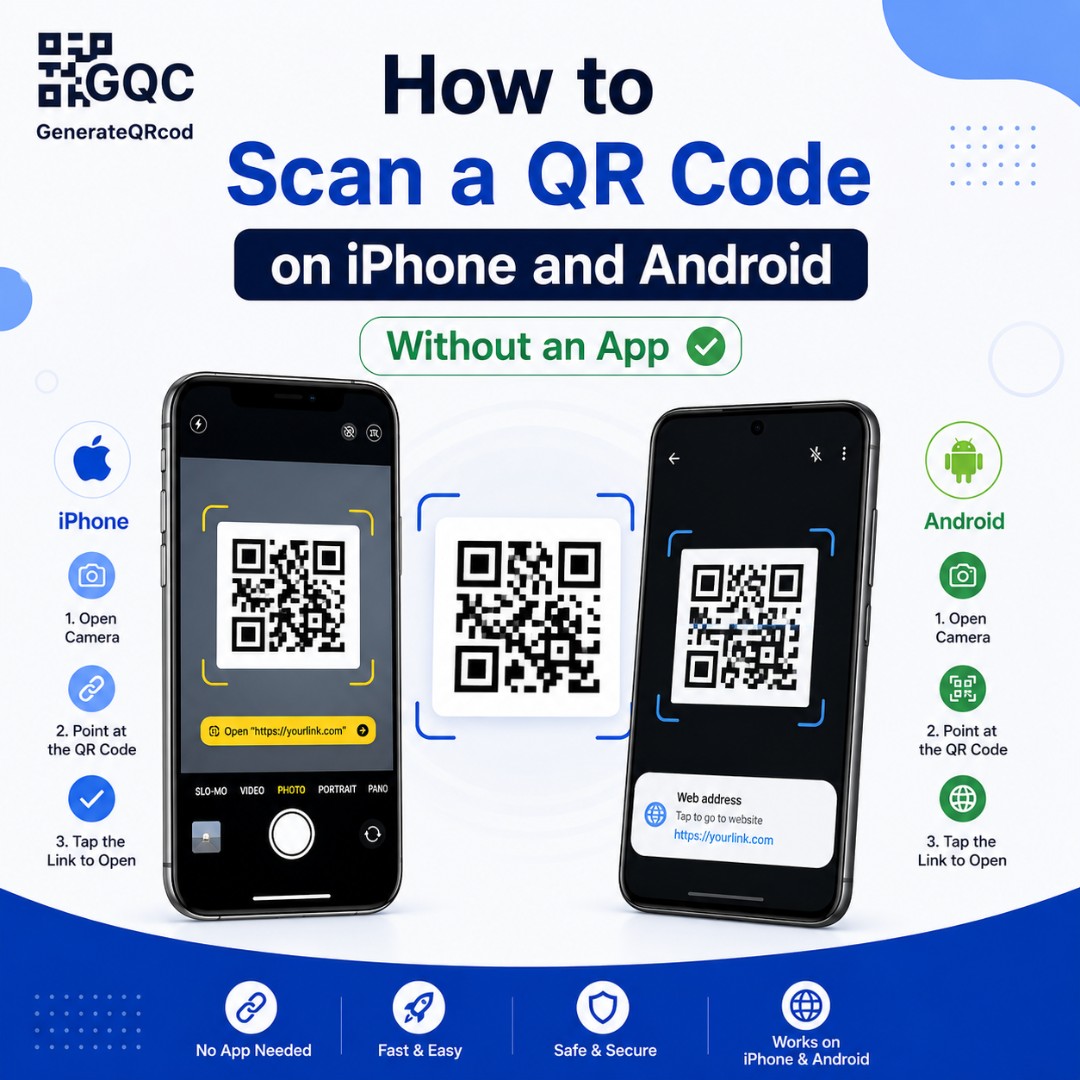
My mother called me from a restaurant last month asking which QR scanner app she should download. The waiter had handed her a table card with a code on it and walked away.
She did not need any app. Her phone had a scanner built in the whole time — it was just sitting inside the camera, unlabelled, waiting for her to point it.
This is the situation for most people. Phones have been able to read QR codes for years now, but nobody announced it, so app stores are still full of scanner apps that are unnecessary and often stuffed with ads.
Here is how to do it properly on both phones, including the trickier cases — codes in saved photos, codes in a WhatsApp message, and codes already on your own screen.
How do you scan a QR code without an app?
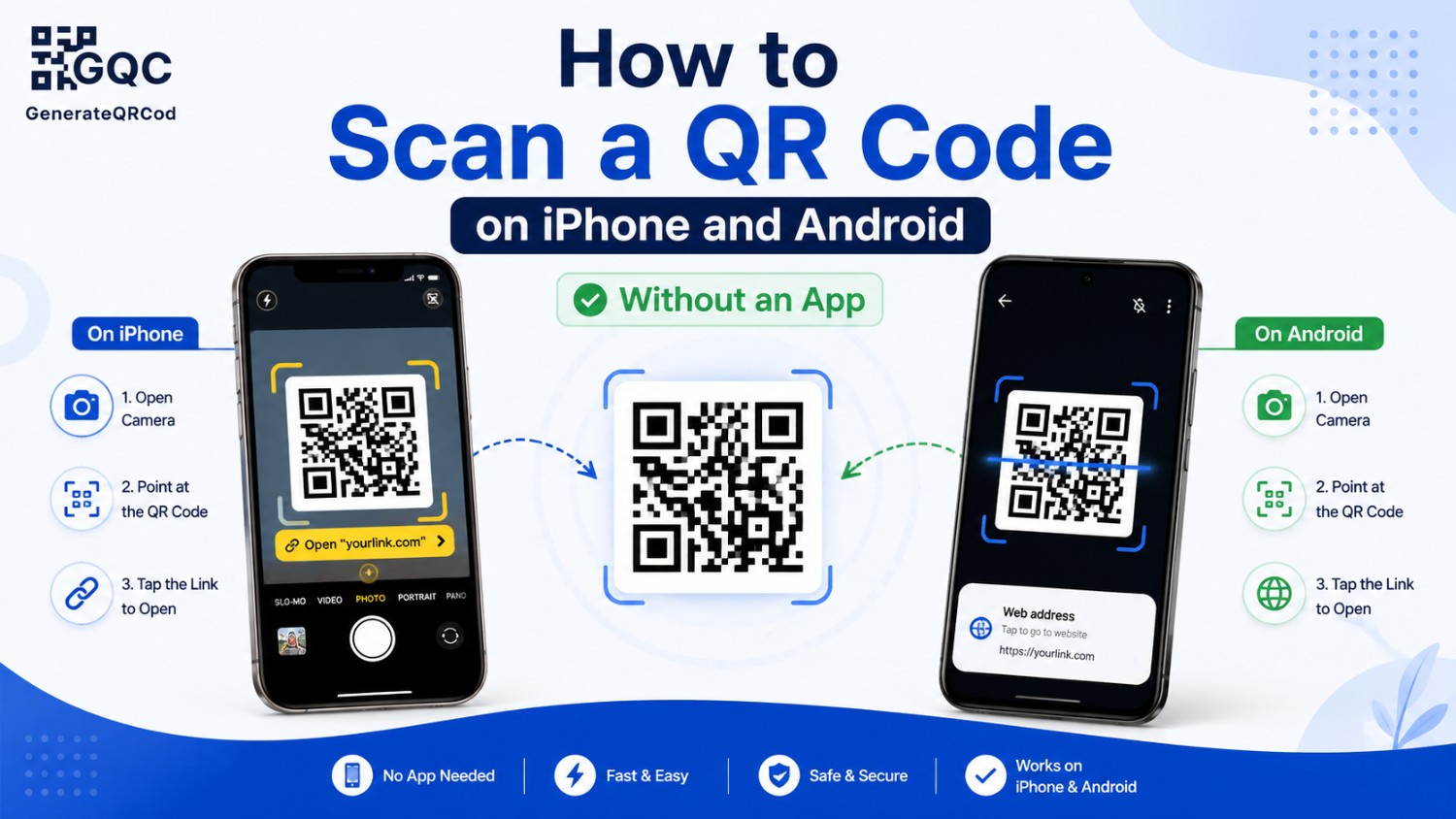
Open your phone’s camera app and point it at the QR code so the whole code fits on screen. Hold steady for a second. A link or banner will appear at the top or bottom of the screen — tap it to open. This works on iPhones running iOS 11 or later and on most Android phones.
How to scan a QR code on an iPhone
The camera does everything. There is no separate app to install and no mode to switch to.
Using the Camera app
Open Camera and keep it on the normal Photo mode. Point the rear camera at the code, with the whole code visible in the frame. Hold it around 15 to 20 centimetres away — too close and the lens cannot focus.
Within a second a yellow notification appears at the top of the screen showing the link. Tap it and the page opens in Safari.
If nothing happens, check Settings, then Camera, and make sure Scan QR Codes is turned on. It is enabled by default, but a surprising number of phones have had it switched off at some point.
Using the Code Scanner in Control Centre
There is also a dedicated scanner that is more reliable in dim light because it turns the torch on for you.
Go to Settings, then Control Centre, and add Code Scanner to your included controls. After that, swipe down from the top-right corner of the screen and tap the scanner icon whenever you need it.
This one is worth setting up if you scan codes often — payment counters, event entries, parking meters.
How to scan a QR code on an Android phone
Android varies a little by brand, but on almost every recent phone the camera handles it directly.
Using the Camera app
Open the camera, point it at the code, and wait for a link banner or a small popup to appear. Tap it to open.
On Samsung, Xiaomi, OnePlus, Realme and most other brands this works out of the box. If it does not, open the camera settings and look for an option called Scan QR codes, Smart scan, or Google Lens suggestions, and turn it on.
Using Google Lens
Google Lens is the most dependable option on Android, especially on older phones.
You can reach it from inside the camera app on many phones, from the Google app, or from the Google search bar widget on your home screen — look for the small camera icon.
Point Lens at the code and the link appears immediately. Lens also reads codes that the plain camera struggles with, such as slightly damaged or low-contrast ones.
Using the Quick Settings tile
Many Android phones include a QR scanner tile in the notification shade.
Swipe down twice from the top of the screen, then tap the pencil or edit icon to see all available tiles. If a Scan QR code tile is there, drag it into your active set. After that, it is two swipes and one tap from any screen.
Quick comparison
Situation | iPhone | Android |
|---|---|---|
Printed code in front of you | Camera app | Camera app |
Dim lighting | Code Scanner in Control Centre | Google Lens with torch on |
Code in a saved photo | Photos app, tap the code | Google Photos, then Lens |
Code in a WhatsApp chat | Save image, open in Photos | Long-press image, then Lens |
Code on your own screen | Screenshot, then Photos | Screenshot, then Lens |
How to scan a QR code from a photo or screenshot
This is the part most people do not know exists, and it solves a very common situation — someone sends you a code on WhatsApp and you have no second phone to point at it.
On iPhone
Save the image to your Photos library, then open it. Press and hold on the QR code inside the photo, or look for the small Live Text icon in the corner of the screen. The link appears and you can tap to open it.
This works on iOS 15 and later. On older versions you would need to open the image on another screen and scan it with the camera.
On Android
Open the image in Google Photos and tap the Lens icon at the bottom. Lens reads the code inside the picture and shows the link.
In WhatsApp specifically, you can also long-press the received image and choose the option to search or scan it with Lens, depending on your phone.
How to scan a code that is already on your own screen
You cannot point a phone’s camera at itself, so this needs a small workaround.
Take a screenshot of the code, then use the photo method above — Photos on iPhone, Google Lens on Android. The screenshot is treated like any other saved image.
One warning worth repeating here. Codes sent by strangers, or found in unexpected emails, deserve a look before you tap. Scanning is safe. Opening whatever it leads to is where the risk sits.
Always check the link before you tap it
When a code is scanned, your phone shows a preview of the address before opening it. Read that preview for a second.
Does the domain match the business you are dealing with, spelled exactly right?
Is there a strange lookalike spelling, with extra letters or a different ending?
Is it asking you to log in or pay when you did not expect that?
Is the code a sticker pasted over another code, on a parking meter or a payment counter?
Fake codes stuck on top of genuine ones are the most common QR scam, and they are easy to spot if you take a moment. If anything looks off, close the page and type the website address yourself instead.
If the code will not scan
Try these before assuming your phone is broken.
Move back — most people hold the phone far too close for the camera to focus
Fit the whole code in the frame, corners included
Wipe the camera lens, since a smudge softens the pattern enough to matter
Add light, or move away from direct glare on a glossy surface
Hold steady for two full seconds instead of waving the phone around
Try Google Lens on Android, or the Control Centre scanner on iPhone
If two different phones both fail, the problem is the code, not your device. Printed too small, no white margin around it, or too little contrast are the usual causes.
Need to create a QR code, not just scan one?
Making one is just as simple as scanning. Use our free qr code generator to create codes for websites, WiFi, contact details, email, phone numbers and more. Add your logo, pick your colours, and download in PNG for screens or SVG for printing. No sign-up and no watermark.
And if you know someone still hunting for a scanner app to download, tell them to open their camera first.
My mother has not looked back since.