
Three weeks before the wedding, the bride had 87 unread messages sitting on her phone. Almost every single one asked the same thing. What time does it start? Which gate? Is there parking near the hall?
All of it was printed on the invitation. In a beautiful script font. That nobody actually read.
This is exactly the problem a QR code solves.
A QR code for a wedding invitation is a small square you print on the card. Guests point their phone camera at it, and it opens whatever you linked to it — an RSVP form, a map, a shared photo album, your wedding website. No app to download. No typing. One scan, done. And you can create one for free in about a minute using a free QR code generator online.
Below are eight ways couples are actually using them, plus the printing details that decide whether the code works or quietly fails on 300 cards.
Why put a QR code on a wedding invitation?
A QR code on a wedding invitation gives guests instant access to details that will never fit on a printed card — RSVP forms, venue directions, dress codes, gift registries and photo albums. It cuts down the phone calls to the couple, saves paper and printing cost, and lets you update information even after the cards have been posted.
That last part matters more than people expect. Cards get printed once. Plans change twice.
What guests keep asking | What the QR code does instead |
|---|---|
“What time should we reach?” | Opens the full function-wise schedule |
“Where exactly is the venue?” | Opens a Google Maps pin with live directions |
“Are you coming or not?” (you asking them) | RSVP form collects replies into one sheet |
“Can you send me the photos?” | Opens a shared album everyone can upload to |
“What should I wear?” | Opens the dress code and colour palette page |
8 smart ways to use QR codes for wedding invitations
1. Collect RSVPs without a single phone call
Link the code to a simple Google Form. Ask for name, number of guests, meal preference, and whether they need accommodation. Replies land in one spreadsheet automatically, sorted, spelled correctly, with no midnight WhatsApp chasing.
Best link type: Google Form, Typeform, or your wedding site RSVP page
Card label to use: “Scan to RSVP by 12 March”
2. Send guests straight to your wedding website
If you have built a wedding website, the QR code is the shortest possible path to it. Your story, the schedule, hotel blocks, travel notes, gallery — all in one place. Guests who want detail get detail. Guests who do not, ignore it.
3. A map pin instead of a written address
Written addresses fail at farmhouses, resorts and anything described as “near the old water tank.” A Google Maps share link fixes it in one scan. Your driver-less, GPS-dependent cousins will thank you, and so will the 60-year-old uncle who refuses to ask for directions.
4. Collect guest photos in one shared album
Print a small QR on the table cards or the welcome board that opens a shared Google Photos or Drive album. Your photographer gets the posed shots. Your guests get everything else — the dance floor, the aunties laughing, the moments nobody was paid to capture.
5. Share the gift registry politely
Registries can feel awkward when printed in words. A QR code on a small insert card handles it quietly — the guests who want to check will scan it, and nobody feels asked.
6. Function-wise schedule and dress code
Mehendi at 11, haldi at 4, sangeet the next evening, reception on Sunday. Different venues, different outfits, different timings. That is a full page of information. It does not belong on an invitation card — it belongs behind a QR code.
7. Venue or hotel WiFi
A WiFi QR code connects a phone to the network without anyone reading a 14-character password out loud. Useful at the hotel where your out-of-town guests are staying, and at venues with weak mobile signal.
8. Live stream link for guests who cannot travel
Grandparents who cannot manage the journey. Friends stuck abroad. One QR code on the invitation, linked to an unlisted YouTube stream or a Zoom room, and they are in the room without being in the room.
Bonus: put a QR on your thank-you cards later, linked to the final edited album. It is the cheapest, warmest follow-up you will ever send.
Where to place the QR code on your wedding card
Placement | Why it works | Watch out for |
|---|---|---|
Back of the main card | Keeps the front design untouched | Guests may never flip it — add a one-line prompt |
Bottom-right of the front | Highest scan rate by far | Can clash with ornate borders and foiling |
Separate insert card | Space for a proper label and instructions | One extra piece to design and print |
Envelope liner or seal | Feels premium, gets noticed | Envelopes get thrown before scanning |
Save-the-date | Earliest RSVPs, earliest headcount | Details may still change — link to a page you control |
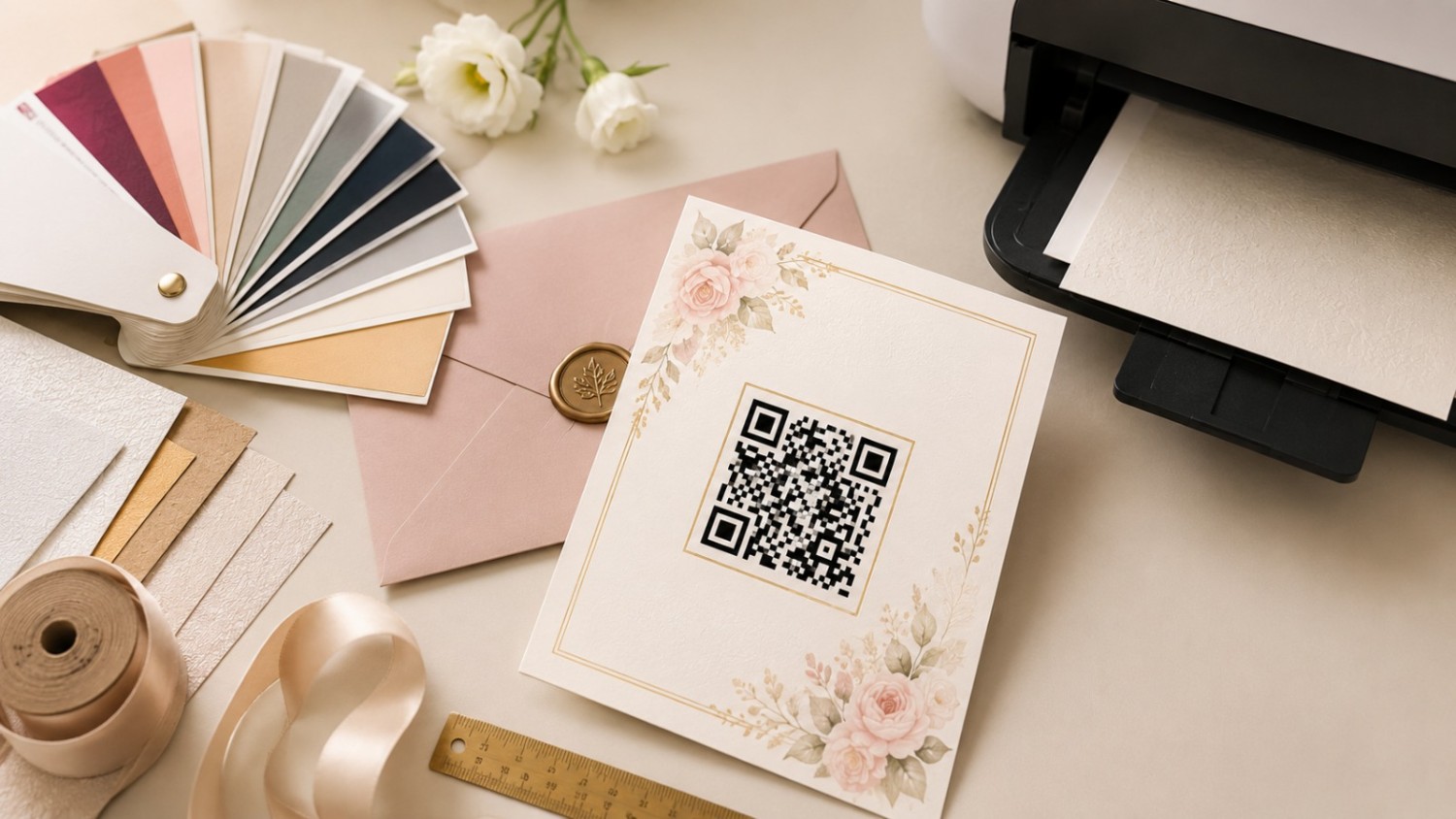
Size, colour and printing — the boring part that actually decides everything
Most failed wedding QR codes are not badly designed. They are badly printed. Here is the size guide worth following.
Where it is printed | Scanned from | Minimum size |
|---|---|---|
Invitation card | About 15 cm | 2 × 2 cm |
RSVP or insert card | About 15 cm | 2.5 × 2.5 cm |
Table tent at the venue | Arm’s length | 5 × 5 cm |
Welcome board or standee | 1.5 – 2 metres | 15 × 15 cm or larger |
And a few rules that are not negotiable:
Keep the contrast high. Dark code, light background. Gold on ivory looks gorgeous and scans terribly.
Never invert it. A light code on a dark background fails on a lot of older phones.
Leave a clear white margin on all four sides — roughly the width of four small squares. This blank space is what lets the camera lock on.
Download SVG for the printer, PNG for WhatsApp. SVG stays sharp at any size.
Test-print one card and scan it with two different phones before you approve 300 copies. This one step has saved more weddings than any other tip on this page.
How to make a QR code for your wedding invitation
Get your link ready first — the RSVP form, the map pin, the album, whatever the code should open.
Open a custom QR code generator online and choose the URL type (or WiFi, if you are sharing a network).
Paste your link. The preview updates live as you type.
Match your wedding palette if you like — but keep it dark on light, always.
Add your monogram in the centre using the QR code generator with logo feature, and set error correction to High so the code still scans.
Download the SVG and send it to your printer.
Takes about a minute. Costs nothing. No sign-up, no watermark.
Static or dynamic — which one should a couple use?
A static QR code has the link baked permanently into the pattern and never expires. A dynamic QR code points to a redirect you can edit later, so you can change the destination without reprinting the cards. For weddings, static is usually enough — as long as you link to a page you control.
Static QR code | Dynamic QR code | |
|---|---|---|
Can you change the link later? | No | Yes |
Does it expire? | Never | Depends on the provider |
Cost | Free | Usually paid |
Best for | Map pins, WiFi, final photo album | Save-the-dates, venues that might change |
There is a simple workaround, though. Point the static code at a Google Form or a page on your own site, then change the content behind that link whenever plans shift. The QR code stays the same. The information changes. Clever, free, and it works every time.
Ready to add a QR code to your wedding invitation?
Pick one thing your guests keep asking about. Turn it into a link. Turn that link into a code. Print it small, print it dark, and test it once before the full run.
Create your wedding QR code now with the best free QR code generator online — add your monogram, match your colours, and download a print-ready SVG in under 60 seconds. No sign-up, no limits, always free.