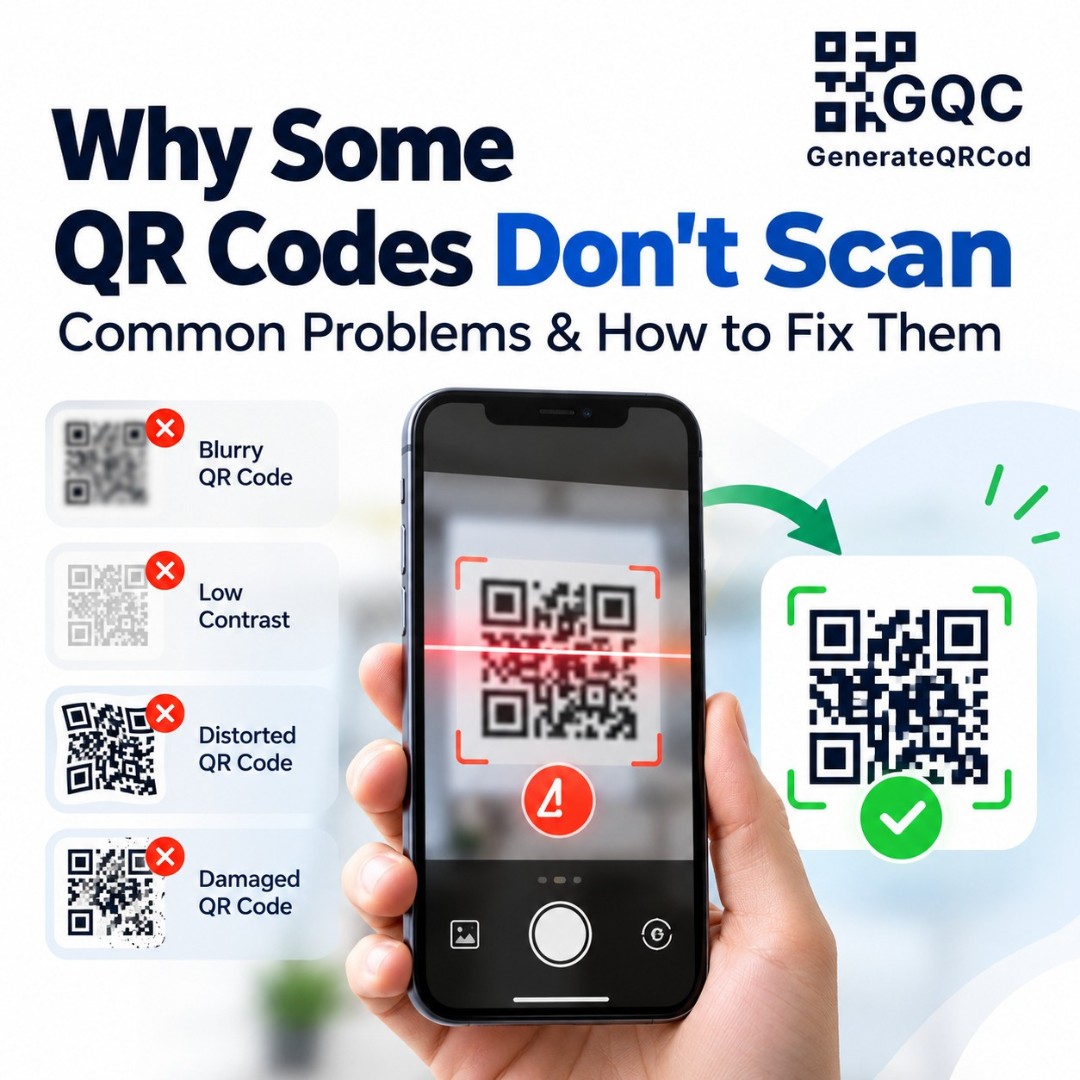
A customer at a clothing store holds up her phone to the QR code on a price tag. Nothing happens. She moves closer. Still nothing. She tilts the phone, sighs, and walks off to ask a staff member instead.
The store paid for printing those tags. And the code failed at the one job it had.
If you've ever wondered why some QR codes don't scan, you're not alone. The good news is that most problems come from a small list of causes, and nearly all of them are easy to fix. This guide walks through each one.
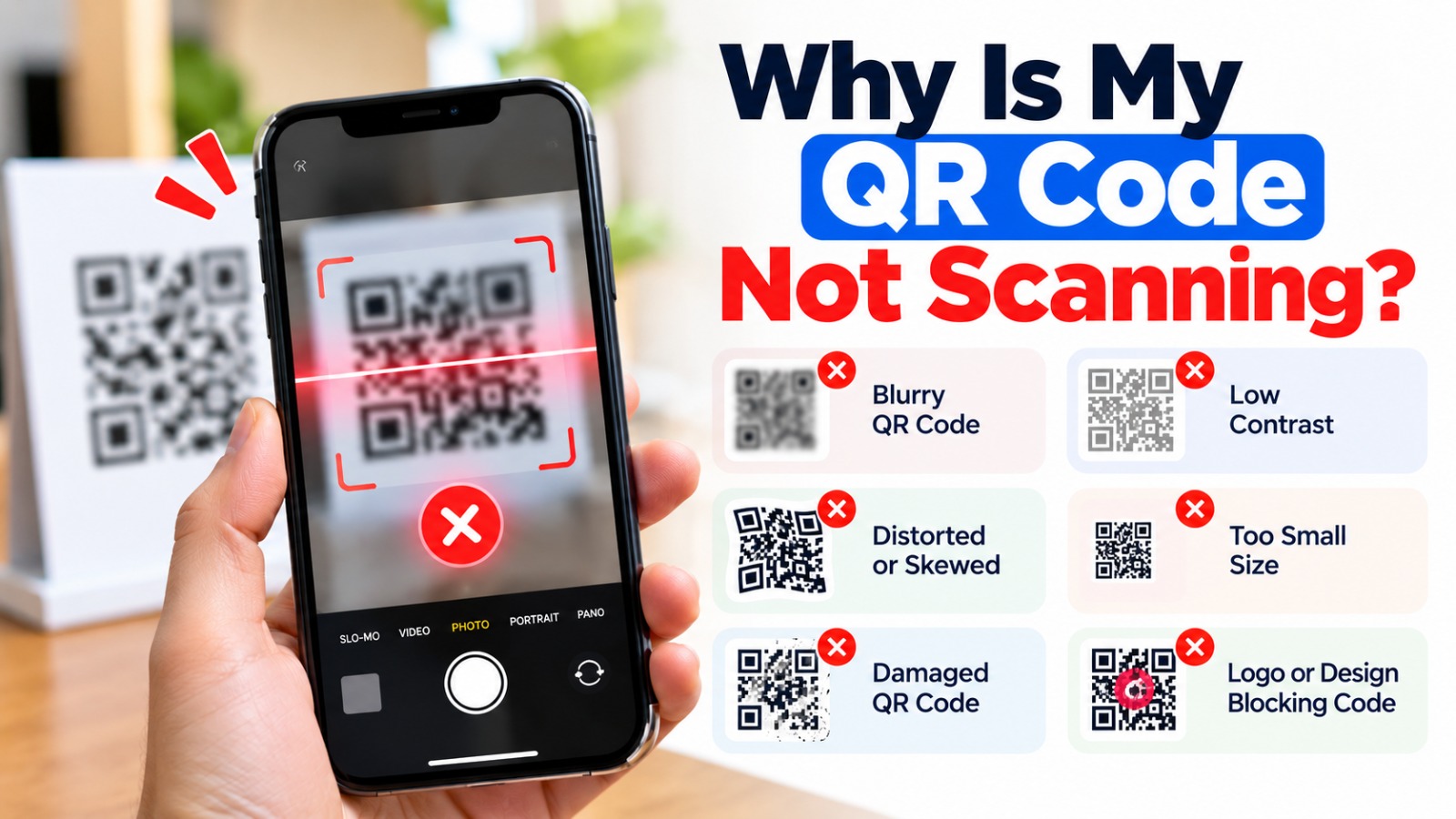
Why Is My QR Code Not Scanning?
A QR code usually fails to scan because of poor contrast, a size that's too small for the distance, a missing white margin, too much data packed inside, damage or glare on the print, or a logo covering too much of the pattern. Sometimes the code scans fine, but the link behind it is broken or expired.
Let's go through them one by one.
1. Low Contrast Between Code and Background
This is the most common reason. Phone cameras look for a clear difference between dark and light squares. Light gray on white, yellow on white, or dark blue on black makes that hard.
Fix: Keep the code dark and the background light. Black on white is the safest. If you use brand colors, make sure the code color is clearly darker than the background.
2. Inverted Colors
A white code on a black background looks stylish. But some older phones and scanner apps can't read inverted codes at all.
Fix: Use a dark code on a light background. If your design needs a dark area, place the QR code inside a white box.
3. The Code Is Too Small
A tiny QR code on a business card corner or a big poster seen from far away will struggle. The camera simply can't see each square clearly.
Fix: Keep printed codes at least 2 cm wide for close scanning. For distance, make the code roughly one-tenth of the scanning distance. So a poster scanned from 2 meters needs a code about 20 cm wide. Our QR code best practices guide has a full size chart.
4. No Quiet Zone Around the Code
The quiet zone is the blank border around a QR code. Scanners use it to find where the code begins. When text, borders, or images touch the code, the scanner gets confused.
Fix: Leave a clean margin around all four sides, about four squares wide. Don't crop the code tightly in your design.
5. Too Much Data Inside
Long links, full paragraphs, or big contact cards create a dense code with hundreds of tiny squares. It might scan on a new phone in bright light, and fail everywhere else.
Fix: Shorten your content. Use a short, clean link instead of a long one full of tracking tags, and put detailed text on a web page instead of inside the code. Our guide on QR code data size explains why this matters.
6. The Logo Covers Too Much
Logos are great for branding. But a big logo can hide the data the scanner needs.
Fix: Keep the logo small and centered, and use a higher error correction level so the code can still be read with part of it covered. On GenerateQRCod, the live preview lets you scan and check before downloading.
7. Blurry or Stretched Print
A low-quality PNG stretched to fit a banner turns into soft, fuzzy squares. Scanners hate fuzzy edges.
Fix: Download the SVG file for print. It's a vector format, so it stays sharp at any size. Never stretch a code unevenly, since squares must stay square.
8. Glare, Curves, and Damage
Glossy lamination under shop lights creates reflections that hide parts of the code. Codes printed around a bottle or cup get bent. Stickers get scratched, faded, or peeled.
Fix: Use matte finishes where possible. Place codes on flat surfaces. For labels that face wear, pick a higher error correction level and replace damaged codes quickly.
9. The Code Scans, but the Page Doesn't Open
Sometimes the problem isn't the code at all. The phone reads it, but shows an error, a blank screen, or nothing loads.
Common causes: The web page was deleted or moved. The link had a typo when the code was made. It was a dynamic QR code from a free trial that has expired. Or the page is slow and heavy on mobile data.
Fix: Open the link yourself on mobile data. If the page moved, set up a redirect from the old address, as explained in our guide on how to redirect a QR code. Going forward, static codes pointing to pages you control avoid the expiry problem completely.
10. Problems on the Phone Side
Now and then, the code is fine and the phone isn't. A dirty camera lens, very low light, an outdated camera app, or QR scanning switched off in camera settings can all stop a scan.
Fix: Wipe the lens, add some light, and hold the phone steady about 15 to 30 cm away. On most Android phones and iPhones, the built-in camera reads QR codes, but some older Android models need Google Lens or a scanner app.
Quick Troubleshooting Table
Problem you see | Likely cause | Quick fix |
Camera doesn't react at all | Low contrast or inverted colors | Dark code on light background |
Works only very close | Code too small | Increase size for the distance |
Works on some phones only | Too much data or small logo issue | Shorten content, shrink logo |
Fails on printed copy only | Blurry print or glare | Use SVG and matte finish |
Scans but shows error | Broken, moved, or expired link | Fix the link or add a redirect |
How to Test a QR Code Before Printing
Testing takes five minutes and can save a full print run. Scan the code from your screen with at least two phones, ideally one iPhone and one Android. Then print a single proof at the real size and scan that too. Try it in dim light, at the real distance, and from a slight angle. Finally, check that the page loads fast on mobile data.
If it passes all of that, print with confidence.
Final Thoughts
When QR codes don't scan, the cause is almost always something simple: contrast, size, margin, data, or a broken link. Fix those, test on real phones, and your codes will work for everyone who tries. Create a clean, high-contrast QR code on GenerateQRCod, download the SVG, and print without the guesswork.